
Select the *EMAIL module by entering option number 8 into the corresponding choice box. In the dialog program "Change i-effect Module Data", parameters can now be modified.
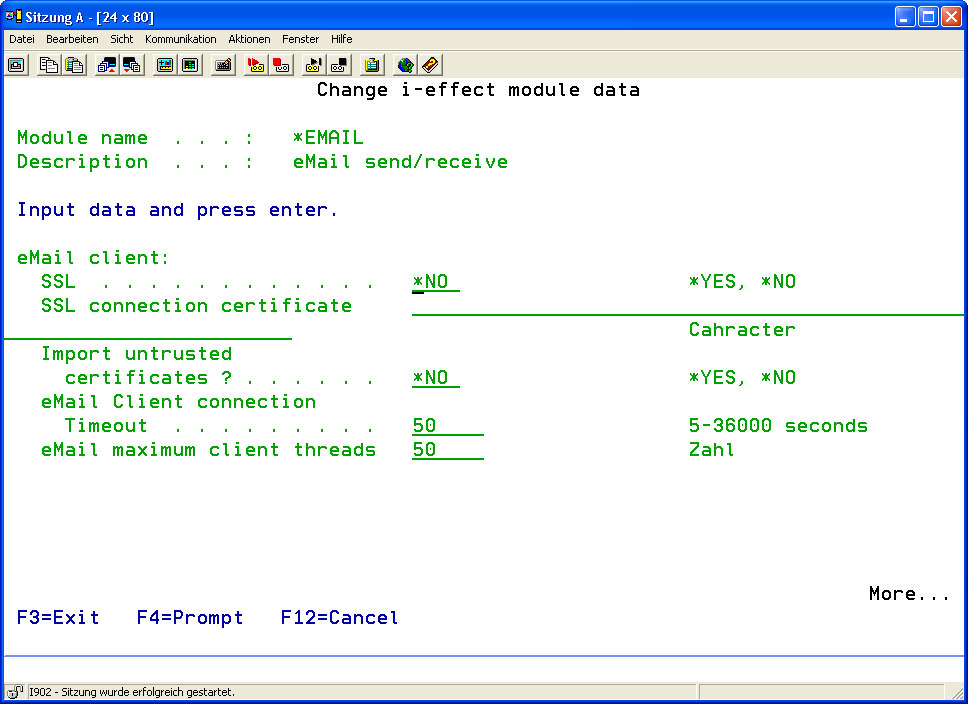
The following options for the *EMAIL module can be set:
|
SSL |
Determine if SSL (Secure Socket Layer) will be used to establish a connection to the email server. |
|||||||||||||||||||||||||||
|
*YES |
YES, SSL is used. |
|||||||||||||||||||||||||||
|
*NO |
NO, a standard connection is to be established. |
|||||||||||||||||||||||||||
|
SSL Connection Certificate |
If *YES is set in the parameter "SSL", the name of the certificate in the keystore, which will be used for authentication of the email server, can be entered here. In SSL connections, the email server identifies to the client by transmitting its X509 certificate to the client when the connection is established. The client decides whether the certificate is known and valid, and therefore, whether the email server can be trusted. The certificate defined here is compared to the certificate sent by the email server. Of course, the email server's certificate must be imported into the i-effect® keystore before establishing a connection. |
|||||||||||||||||||||||||||
|
Use Client Authentication ? |
This parameter no longer applies. |
|||||||||||||||||||||||||||
|
Import Untrustworthy Certificates ? |
Enter the value *YES into this parameter to automatically import email server certificates. The email server identifies to the client by transmitting its X509 certificate itself when the connection is established. If the certificate does not exist in the i-effect® keystore, it will be imported automatically.
|
|||||||||||||||||||||||||||
|
*YES |
YES, server certificates are automatically imported. |
|||||||||||||||||||||||||||
|
*NO |
NO, server certificates are not imported. |
|||||||||||||||||||||||||||
|
Use TLS ? |
This parameter is dropped. |
|||||||||||||||||||||||||||
|
Email Client Connection Timeout |
Define the time in seconds that the client waits for connection establishment. If the time has expired, a timeout notification will be sent. |
|
||||||||||||||||||||||||||
|
Maximum Email Client Threads |
Enter the maximum number of simultaneous email-client-connections. |
|||||||||||||||||||||||||||
|
SMTP Host/IP |
Define the SMTP email server that will be used to send emails. It may be either a DNS name or a TCP/IP address in the form of xxx.xxx.xxx.xxx. All email servers working according to SMTP protocols, e.g. Lotus Notes or Microsoft Exchange, can be used. |
|||||||||||||||||||||||||||
|
SMTP Port |
Define the TCP/IP port that will be used for SMTP communication. The default port for SMTP is 25. |
|||||||||||||||||||||||||||
|
SMTP User ID |
Enter the user ID of the user authorized to access the SMTP server. |
|||||||||||||||||||||||||||
|
SMTP Password |
Enter the password of the user being authorized to access the SMTP server. |
|||||||||||||||||||||||||||
|
SMTP Sender |
Enter the sender of outbound emails sent via SMTP. |
|||||||||||||||||||||||||||
|
SMTP Reply-to |
Enter an address to which a reply to the email should be sent.
Possible special value: |
|
||||||||||||||||||||||||||
|
SMTP Error-to |
Enter an address to which an error notification should be sent
Possible special value: |
|
||||||||||||||||||||||||||
|
SMTP Text Format |
This parameter defines which format is to be used for the message text.
The following values are possible: |
|
||||||||||||||||||||||||||
|
SMTP Encryption |
This parameter defines the character set that is to be used for the message text. Data will be converted into the code page defined in this setting before sending.
The following values are possible: |
|
||||||||||||||||||||||||||
|
Archive Outbound Emails |
This parameter determines if outbound emails are to be stored in the archive directory. The email will be stored entirely including possible attachments.
The following values are possible: |
|
|
*YES |
YES, emails are archived after sending. |
|
|
*NO |
NO, emails are archived after sending. |
|
|
SMTP Archive Directory |
The default IFS path where sent emails are stored. |
|
|
SMTP Priority |
This parameter defines the priority by which the email is sent.
The following values are possible: |
|
|
*NORMAL |
Normal Priority.
|
|
|
*LOW |
Low Priority.
|
|
|
*HIGH |
High Priority.
|
|
|
MDN Request |
This parameter determines if a receipt confirmation (MDN) is requested for sent emails. If the receiving system supports this function, an email (MDN) to confirm the reception of the original email will be generated automatically.
The following values are possible: |
|
|
*YES |
Request MDN.
|
|
|
*NO |
MDN is not requested.
|
|
|
SMTP Proxy Host |
If a proxy server is used for sending emails, enter its IP address or DNS name here. |
||||||
|
SMTP Proxy Port |
If a proxy server is used for sending emails, enter its TCP/IP port here. |
||||||
|
SMTP Proxy User ID |
Enter, if required, the user ID of the user being authorized to access the proxy server. |
||||||
|
SMTP Proxy Password |
Enter, if required, the password of the user being authorized to access the proxy server. |
||||||
|
SMTP Signature Alias |
Enter the alias of the key pair (private key) in the keystore, which is used for signature. |
||||||
|
SMTP Signature Algorithm |
This parameter determines if the outbound email has to be signed electronically. If an email is signed electronically, it allows the receiver to check it for authenticity and integrity as well as its origin by using his public key.
Possible values: |
||||||
|
|
|
SMTP Encryption Alias |
Enter the alias of the public key (certificate) in the keystore, which is used for encryption. |
|
|
SMTP Encryption Algorithm |
This parameter determines if the outbound email must be encrypted before sending. If an email is encrypted using the partner's public key, it can only be decrypted by the partner with his private key.
Possible values: |
|
|
*NONE |
No encryption.
|
|
|
*TRIPLEDES |
3DES Encryption
|
|
|
POP Host/IP |
This parameter defines the email server that is be used to receive emails. Enter either a DNS name or a TCP/IP address in the form of xxx.xxx.xxx.xxx. Every server working according to the POP3 or IMAP protocol can be used, e.g. Lotus Notes or Microsoft Exchange. An account, which is read out with the command RCVEMAIL, must be created on the server. |
|
POP Port |
The TCP/IP port number, under which the mail server can be accessed. The standard value for a SMTP server is 25, for POP3 it is 110 and for IMAP mostly 143. |
|
POP User ID |
Usually, authentication is necessary to login to the POP3/IMAP server. The user ID defined here is used for this purpose. |
|
POP Password |
Enter the password related to the user ID. |
|
POP Protocol |
This parameter determines the protocol that will be used to receive emails.
|
|||||
|
*POP3 |
The POP3 protocol is used. |
|||||
|
*IMAP |
The IMAP protocol is used. |
|||||
|
Archive Inbound Emails |
Determines if inbound emails will be archived. The email will be stored entirely including possible attachments.
The following values are possible: |
|||||
|
*YES |
YES, received emails are archived. |
|||||
|
*NO |
NO, received emails are not archived. |
|||||
|
Archive Directory |
Enter the directory where received emails are to be stored. |
|||||
|
Attachment Directory |
Enter the IFS directory where attachments of incoming emails are stored. |
|||||
|
Inline Text Directory |
Enter the directory where the textual content of incoming emails is stored. |
|||||
|
POP Proxy Host |
If a proxy server is used for receiving emails, enter its IP address or DNS name here. |
|||||
|
POP Proxy Port |
If a proxy server is used for receiving emails, enter its TCP/IP port here. |
|||||
|
POP Proxy User ID |
Enter, if required, the user ID of the user authorized to access the proxy server. |
|||||
|
POP Proxy Password |
Enter, if required, the password of the user authorized to access the proxy server. |
|||||
|
Type of Call |
This parameter defines whether the calling server waits for a feedback or is immediately available for further action.
|
|||||