
Select data (DB as the source module)
When using the DB module you will need an advanced configuration of the data which should be selected at certain points of your mapping. Most mappings that use the DB module as source do have a status column built-in into a select. To configure the DB module proceed as follows.
Schritt 1:
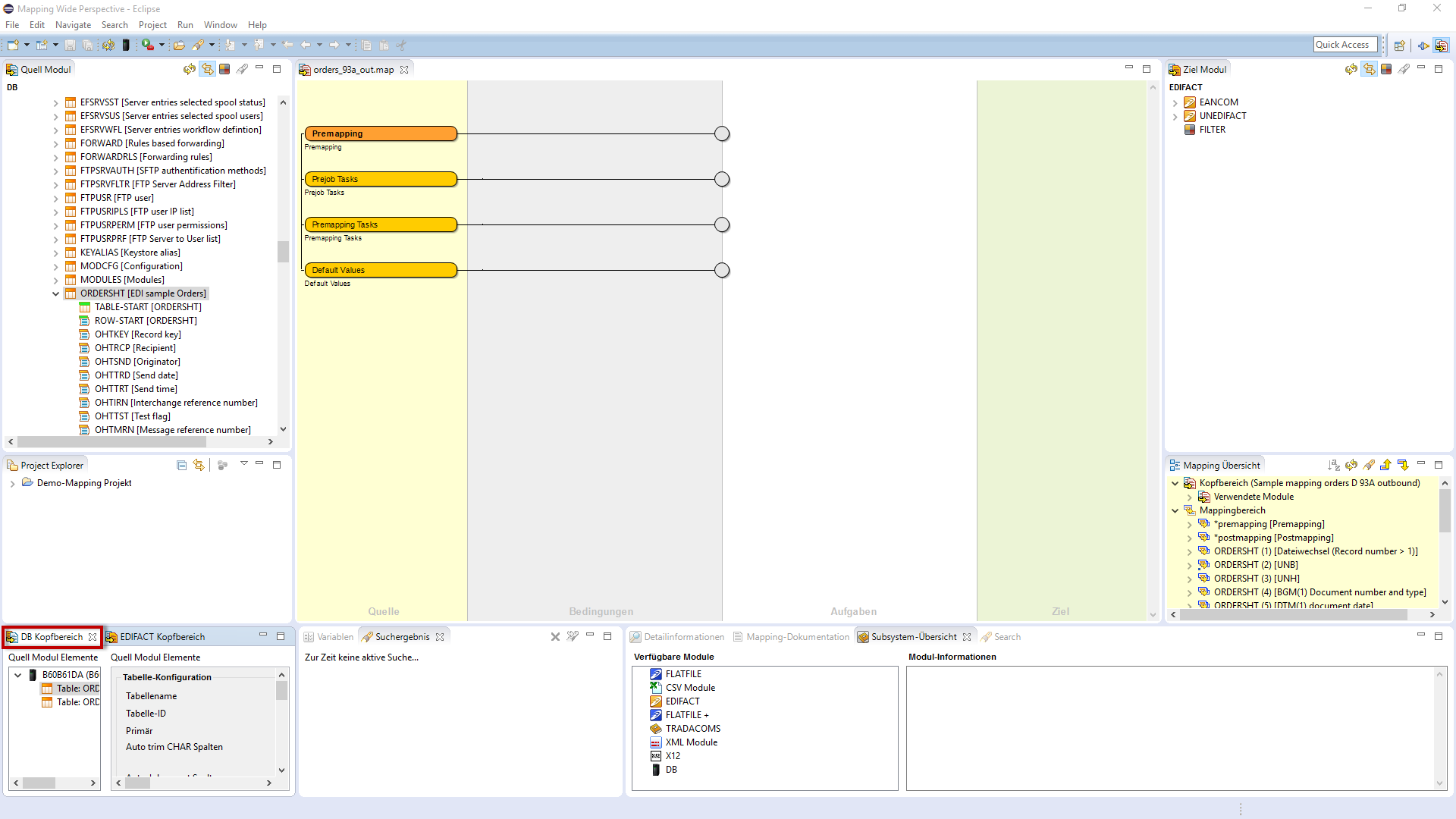
Increase the DB header by clicking on the tab.
Schritt 2:
The window now opens in full screen mode. Here you have the chance to make different configurations on the DB module.
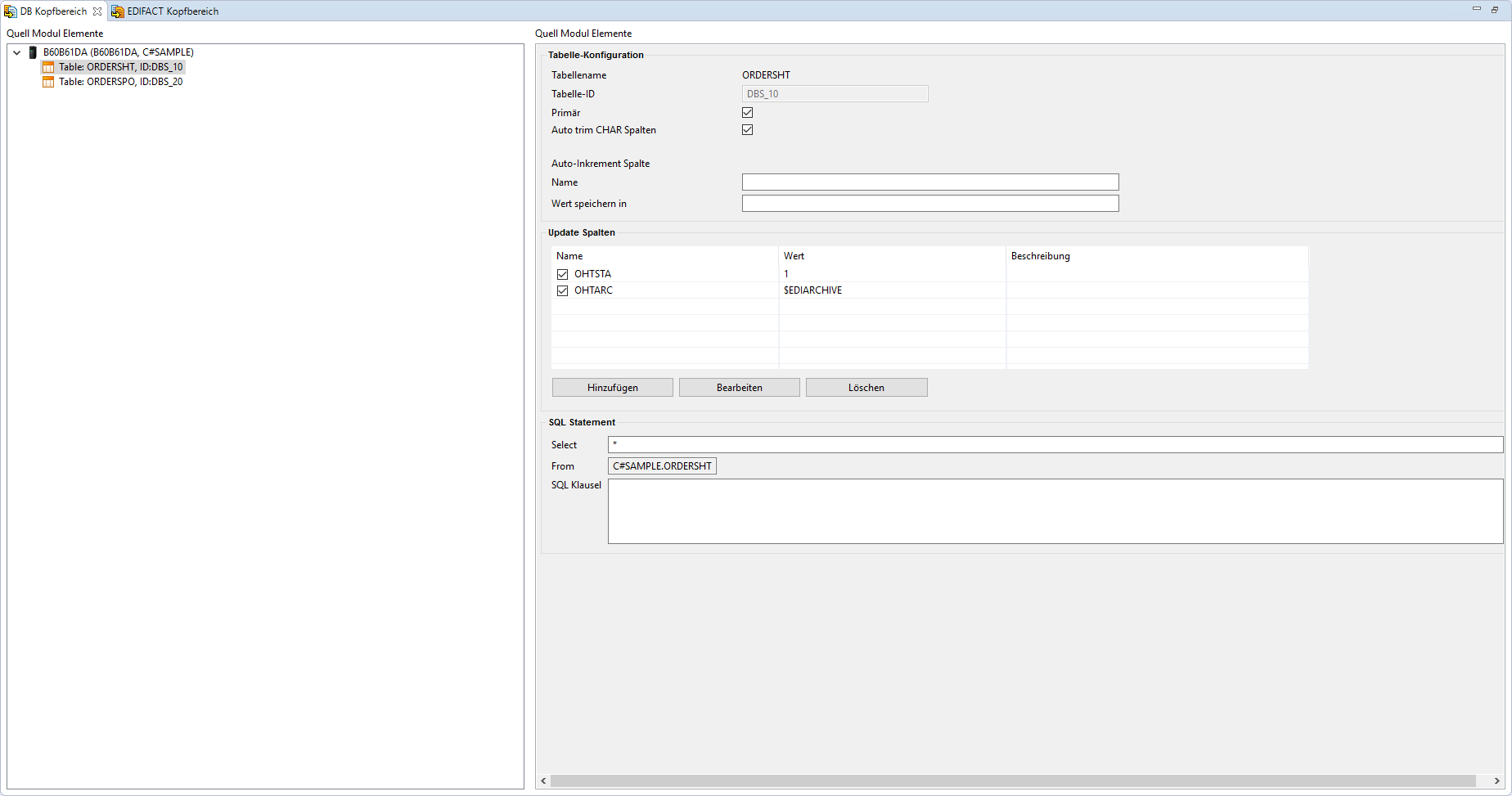
Table configuration
Within the table configuration, there are a variety of settings:
|
Value |
Description |
|---|---|
|
Tablename |
The name of the table. This is not changeable. |
|
Table-ID |
The ID of the table. The ID is used inside the mapping file as a reference for the connection. |
|
Primary |
The table is selected as the primary table which means that this table is used to read the first record. |
|
Auto-Trim Char-column |
Char colums are trimmed automatically, so free of space in the front and in the back. |
|
autoincrement column |
Update-column
Using the update-colum various information can be saved after passing through the mapping. For example, the status OHTA or the archive path OHTA is set.

You can save information in variables inside the mapping and use them.
Select data from the DB
For reading out the records to be processed machting, you can specify appropriate filters as SQL-WHERE via the SQL clause. For example, only the priviously processed data sets should be used.
In addition, the SQL parameters ORDER BY, GROUP BY, etc. are given here. Within the clause, it is also possible to use the variables in the clause that were defined in the mapping (example follows in the WHERE-clause of the position data).
Using this SQL statement you could for example read in all non-processed records from the head table:

You can refer to variables at this point.
Another use for the SQL statement is often the section of the appropriate location information. The difference of the other table properties is only that they are not marked as primary. In order to find for example a suitable position data set for the proviously selected head please use the SQL statement. A condition is formulated which only selects the primary key of the item record matching entries.

Prerequisite for this request is that the variable $HTKEY has been filled with the key of the position data set.
Change Database Connection Settings
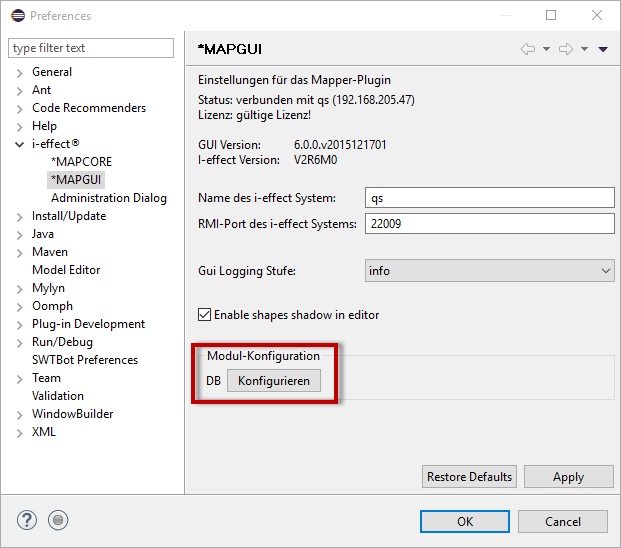
To change the database connection settings open the i-effect menu of the user preferences and click on the button DB configure.
The first tab gives an overview of the connections which are already established and shows detailed information of each connection:
.png?cb=7a1c2eeab58450e928acbe8465821e0f)
You can either edit with the button or with the second tab.
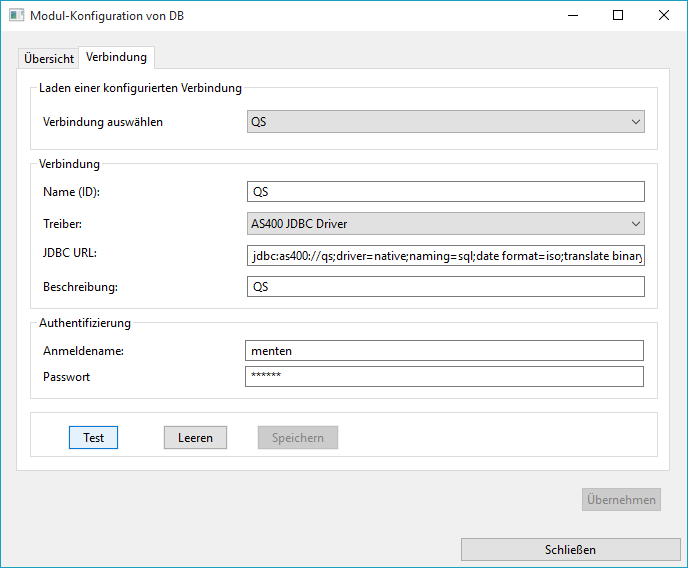
Make sure that you always click save and then apply.
Settings of the DB connection
In addition to the settings for each table, there are two settings for the database connections itselfs. Here you can activate commit and rollback functions.
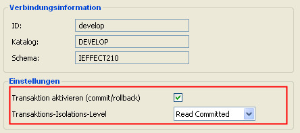
Also you can set the transaction level which is used to get access to the data or to write with.
