
The command WRKEFSPLF allows the user to display a list of all the spooled files in the system or a list of specific spooled files. The user can edit any entry, add it to a ZIP archive, convert it to PC formats, or send it via email.
-
From the menu "i-effect Conversion Tasks" choose menu item 10 or enter the command WRKEFSPLF to display the configuration of the overview of the spooled files.
For the most part, the system displays WRKEFSPLF functions as pictured, but through expansions of specific i-effect functions, for example, "add to ZIP archive", or "send via email", it has more user benefits.
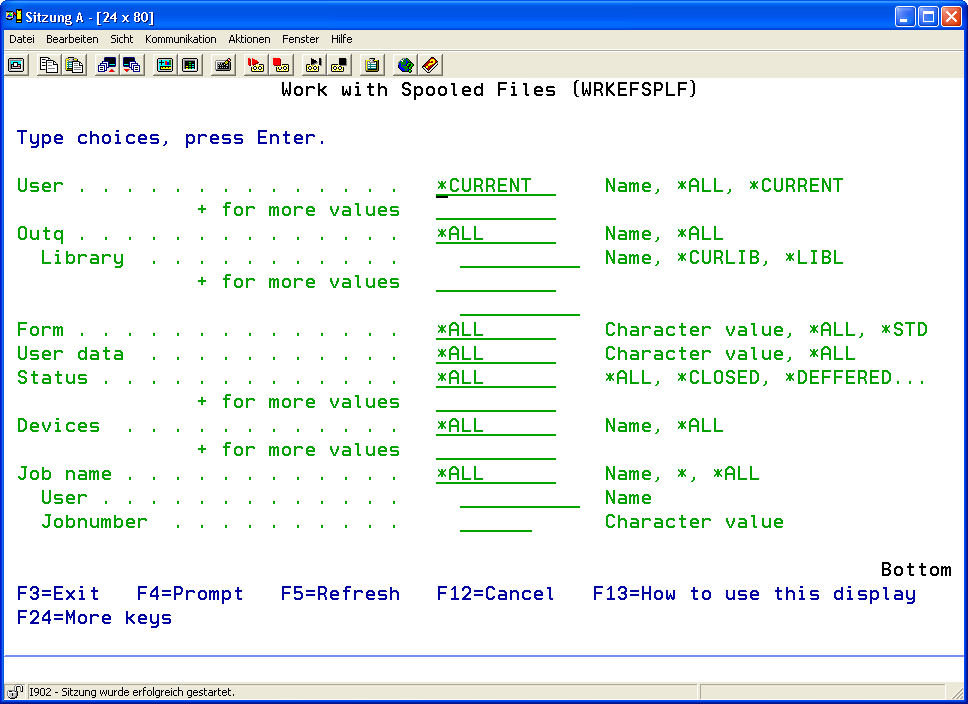
The following display will appear:
-
Enter the desired parameters according to the parameter explanations.
USER
User's name of the selected spooled files. Only spooled files created by the specified user will be chosen.
Possible Special Values:*ALL
Considering the spool files of all users in the system.
*CURRENT
Only the spooled files of the current active user will be used.
Output Queue (OUTQ)
Name of the queues from which the spooled files should be processed.
Possible Special Values:*ALL
Processes all output queues.
Library
The library name, which contains the output queue.
Possible Special Values:*CURLIB
*LIBL
FORM
Entering a specific form type allows selection of spooled files.
Possible Special Values*ALL
All form types will be processed.
*CURRENT
The default form type will be processed *STD.
User Data (USRDTA)
The choice of spooled files, which are to be processed, is made possible by entering certain user data. Up to 10 characters can be entered.
Possible Special Value:*ALL
Processes all spooled files.
Status (STATUS)
Determines the selection of spooled files in the system by status.
Possible Special Values:
*ALL
Spooled file with status *ALL
*CLOSED (CLO)
Spooled files with the status *CLOSED
The program has aborted file processing; SCHEDULE (*JOBEND) was specified and the job, which created the file, has not been terminated.*DEFERRED (DFR)
Spooled files with the status *DEFERRED
Printing of the file has been postponed.*SENDING (SND)
Spooled files with the status *SENDING
The file is being sent, or has been sent to another system.*FINISHED
Spooled files with the status *FINISHED
*HELD (HLD)
Spooled files with the status *HELD
The file has been held.*MESSAGE (MSGW)
Spooled files with the status *MESSAGE
The file contains a message that requires an answer or action.*OPEN (OPN)
Spooled files with the status *OPEN
The file's processing has not been completed and an output
program cannot select it.*PENDING (PND)
Spooled files with the status *PENDING
The file is in the output queue.*PRINTING (PRT)
Spooled files with the status *PRINTING
The file was sent to the printer, but the status message regarding completion has not yet been received.*READY (RDY)
Spooled files with the status *READY
An output program can send the file to an output unit.*SAVED (SAV)
Spooled files with the status *SAVED
The file was printed and then saved. It will remain saved until it will be released.*WRITING (WRT)
Spooled files with the status *WRITING
The file is being written to an output unit by an output program.The status values with the wildcard "*" at the beginning will be displayed if an action was taken with this file, because of a selected option:
*CHG
(Change)
The file was changed with option 2 (Change).*HLD
(Hold)
The file was held with option 3 (Hold).*RLS
(Release)
The file was released with option 6 (Release).
Device (DEVICE)
Enter the names of all devices, whose spooled files should be processed.
*ALL
All spooled files will be processed.
Job Name (JOBNAM)
The selection of spooled files can be made for all jobs, limited to the current job, or limited to a specific job. Enter the job name if a specific job is desired.
Possible Special Values:
*
Uses spooled files only from the current job.
*ALL
Uses all spooled files on the system.
User
Enter the name of the spooled file's user.
Job Number
Enter the name of the job which created the spooled file.
-
After the parameters have been set, the spooled files will be listed. This list contains all attributes and options, such as display or change.
Using the interactive program pictures below the displayed spooled files can be sorted or selected according to their attributes.
-
Enter the desired number in front of one or more spool entries. The chosen processing parameters will be used for all chosen spooled file entries
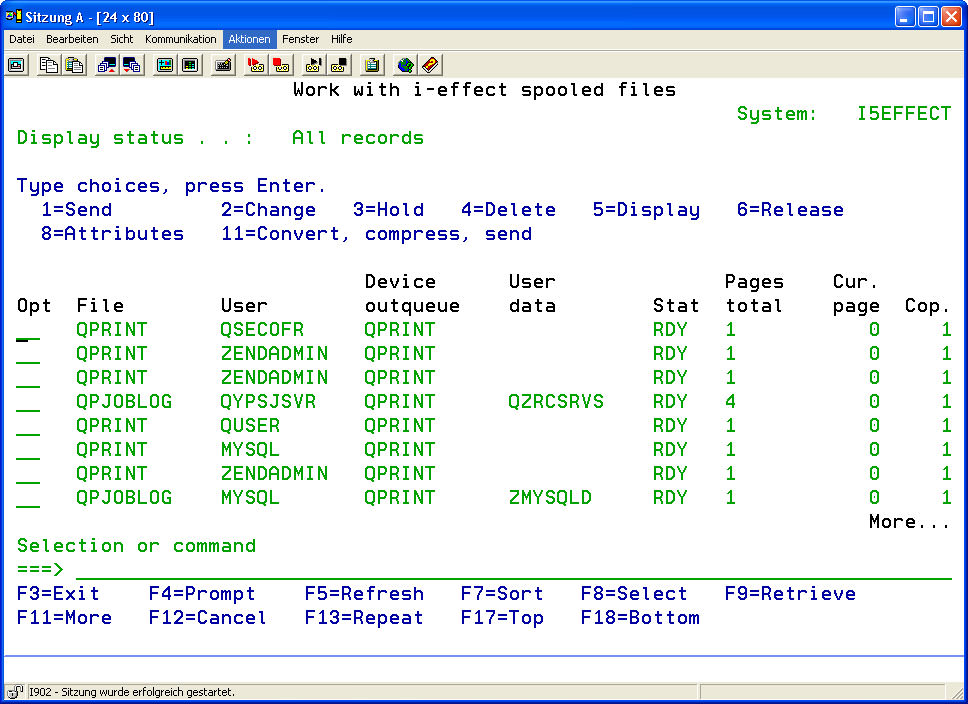
The following options are possible:
|
Option 1 |
Send spooled file
|
|
Option 2 |
Change spooled file
|
|
Option 3 |
Hold
|
|
Option 4 |
Delete spooled file
|
|
Option 5 |
Display spooled file
|
|
Option 6 |
Release spooled file
|
|
Option 8 |
Attributes
|
|
Option 11 |
Convert, compress, and send. |
Unlike V1R2, the conversion tasks are no longer assigned to the options 11-23. Conversion tasks, compression, and sending are configured with option 11.
If option 11 is chosen, a sub menu will open, through which the tasks can be configured:
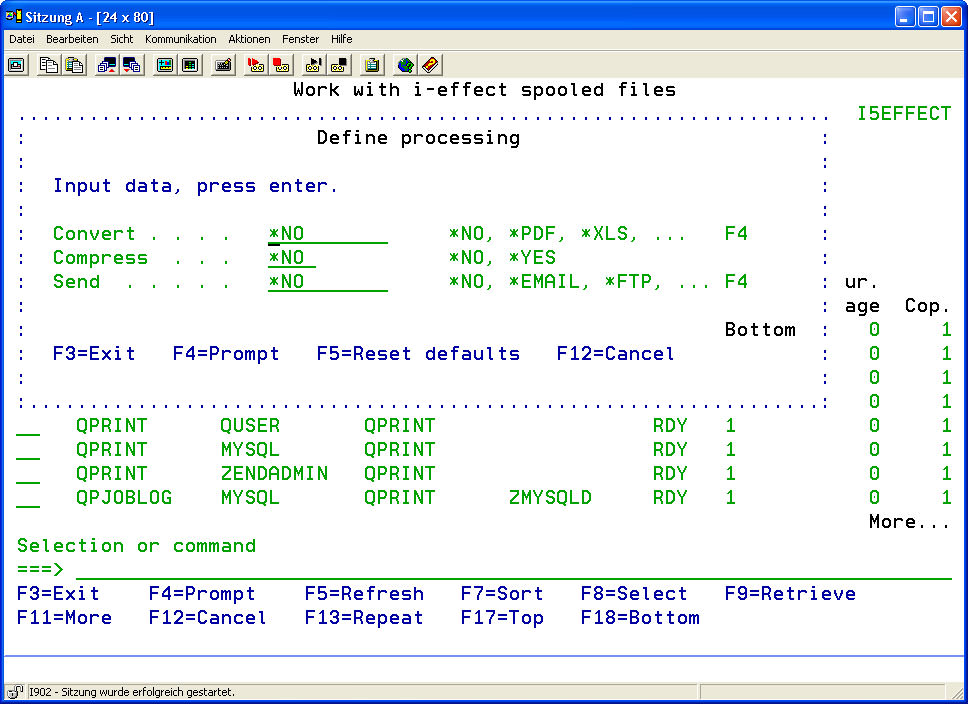
To display a list of options use the F4 key.
The following parameters can be configured:
|
Conversion |
Choose a target format for conversion. Use the F4 key, to display a list of the possible formats.
|
||||||||||||||||||||||
|
Compress |
The spooled file can be added to a ZIP archive using this option. Converted or original spooled files can be chosen. |
||||||||||||||||||||||
|
Possible Special Values: |
|
||||||||||||||||||||||
|
Send |
With this option, it can be determined if the spooled files should be sent.
|
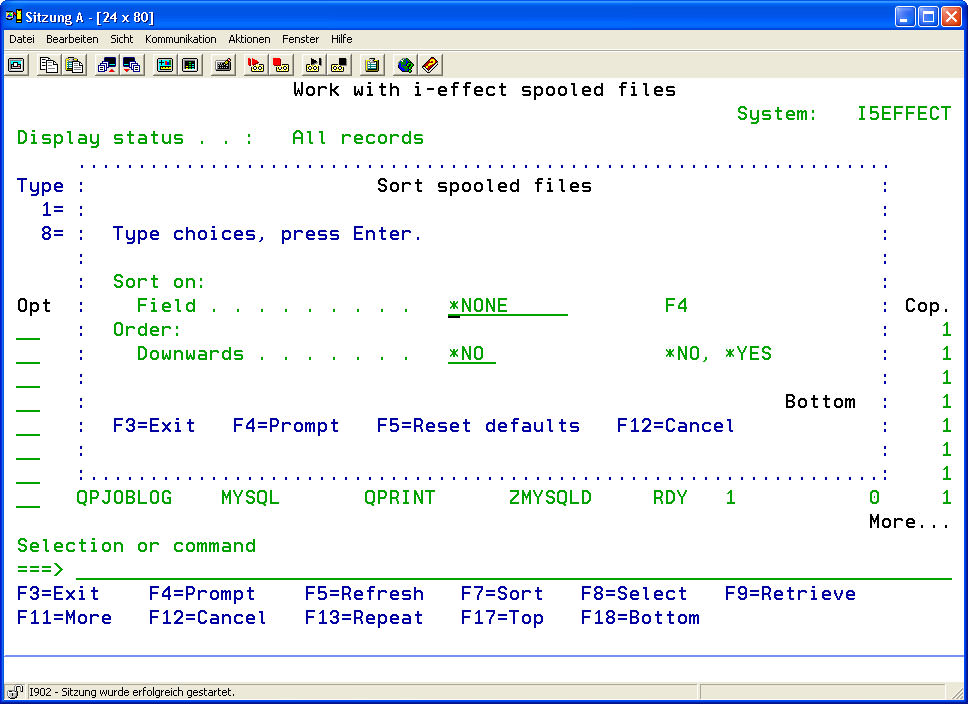
Function Key F7 (Sort)
The F7 key can be used to sort the spool entries according to selected criteria.
-
Call up the entries using F7 .
Define the elements "attribute" and '"order."
-
Sort the displayed spooled files according to the following attributes:
*FILE, *OUTQ, *TIME, *USER, *STATUS, *SIZE -
by typing "1" in the choice box corresponding to the desired attribute. Define whether the spool entries are to be displayed in ascending or descending order.
Function Key F8 (Selection)
Spool entries can be searched according to predefined criteria by using the F8 key.
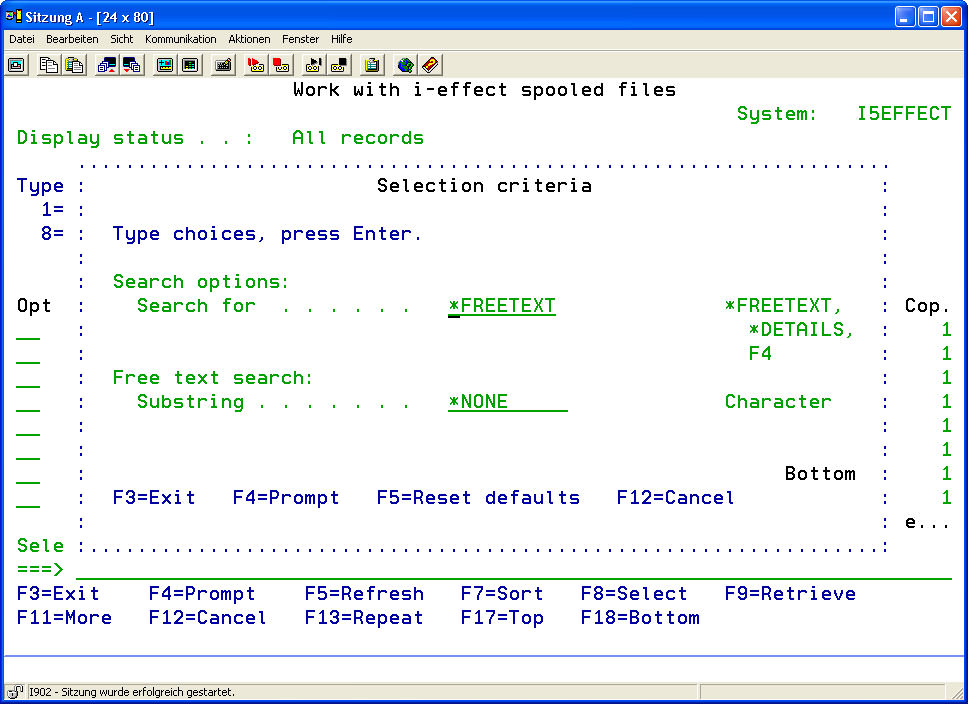
-
Call up the search functions for spooled files by using the F8 key.
-
Enter the search options for the desired spool entries.
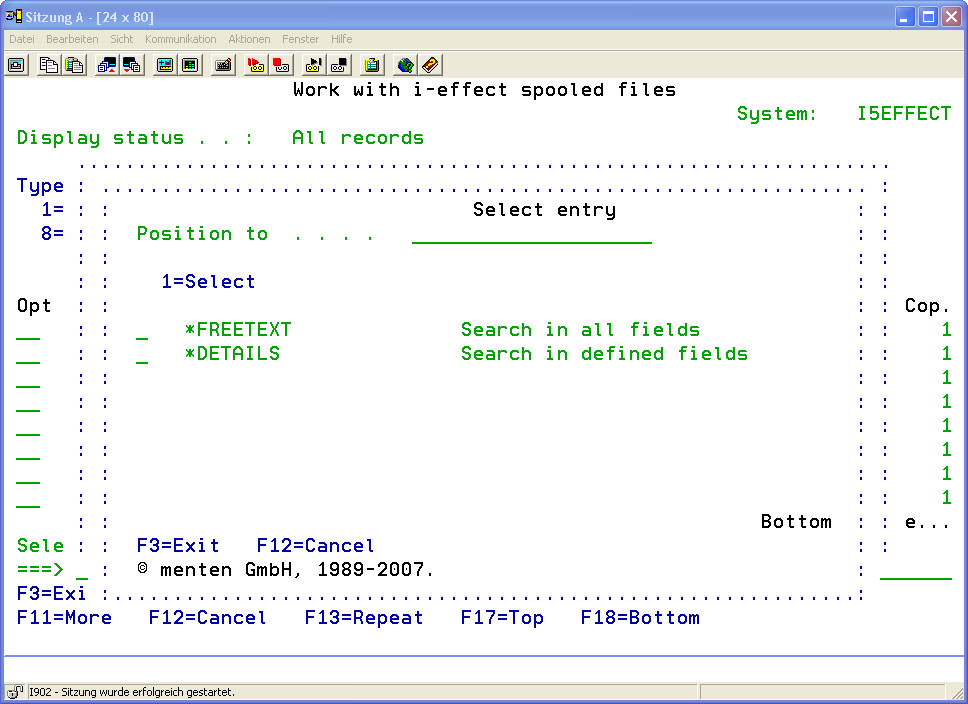
The following options are possible:
|
*FREETEXT |
Searches for a character string in all text attributes. The following input filed will appear only if *FREETEXT has been entered. |
|
Search Pattern |
The desired character string that should be searched for in the attributes of the spooled files. A generic search will be made, i.e. partial character strings will also be compared. |
|
*DETAILS |
Searches for spooled files, based on criteria, which include different attributes of the spooled files. This search mode is called a "generic search." The parameter value *DETAILS will display the following fields: |
|
File Name |
The search will be restricted to the attribute "File Name". A generic search will be made, i.e. partial character strings will also be compared.
|
|
File Number |
The search will be restricted to the attribute "File Number". A generic search will be made, i.e. partial character strings will also be compared.
|
|
Job Name |
The search will be restricted to the attribute "Job Name". A generic search will be made, i.e. partial character strings will also be compared.
|
|
User |
The search will be restricted to the attribute "User". A generic search will be made, i.e. partial character strings will also be compared. |
|
Job Number |
The search will be restricted to the attribute "Job Number". A |
|
Output Queue |
The search will be restricted to the attribute "Output Queue". A generic search will be made, i.e. partial character strings will also be compared. |
|
Library |
Name of the library, in which the queue, which was specified as the output queue, is located. |
|
From Date |
The search will be restricted to the attribute "Creation Date". All spooled files, which were created on or after the specified date will be displayed. |
|
From Time |
The search will be restricted to the attribute "Creation Time". All spooled files, which were created at or after the specified time will be displayed. |
|
Until Date |
The search will be restricted to the attribute "Creation Date". All spooled files, which were created on or before the specified date will be displayed. |
|
Until Time |
The search will be restricted to the attribute "Creation Time". All spooled files, which were created at or before the specified time will be displayed. |
|
User Data |
The search will be restricted to the attribute "User Data". A generic search will be made, i.e. partial character strings will also be compared. |
|
Status |
The search will be restricted to the spool attribute "Status". Possible Options:
|
By pressing F9, the last command entered, and the specific functions specified with the parameters using this command, will be displayed in the command line. This is only possible if a command line is present in the interactive program, i.e. WRKARC, WRKERSPLF etc..