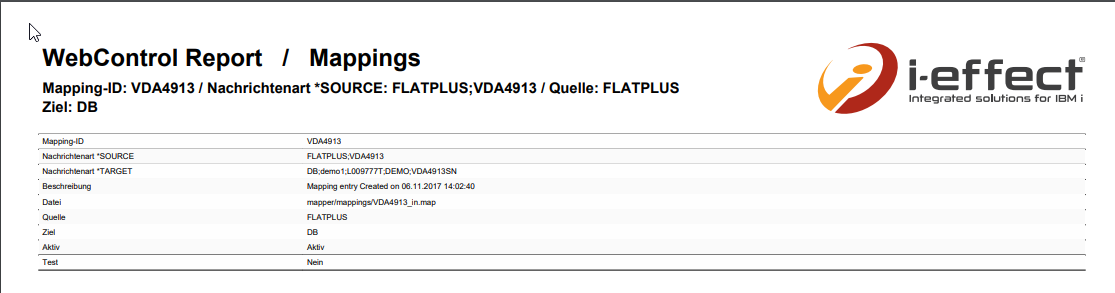
All mappings created and activated in the system are displayed here in a central administration interface. Mappings can be imported and exported from here. Renaming mapping files and mapping IDs is also supported.
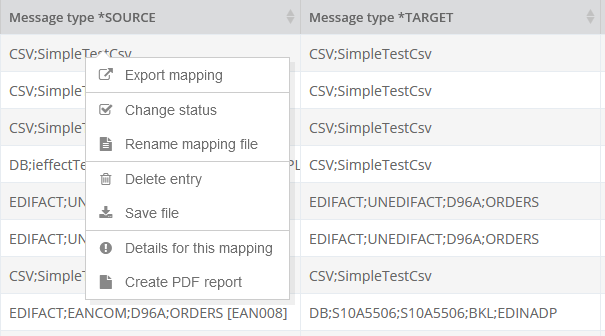
If mappings are to be transferred from one system to another, the import and export functions of this administration support the adjustment of connection ID, database name, schema name as well as (jdbc)SqlLookups and (jdbc)SqlUpdates.
Filter settings
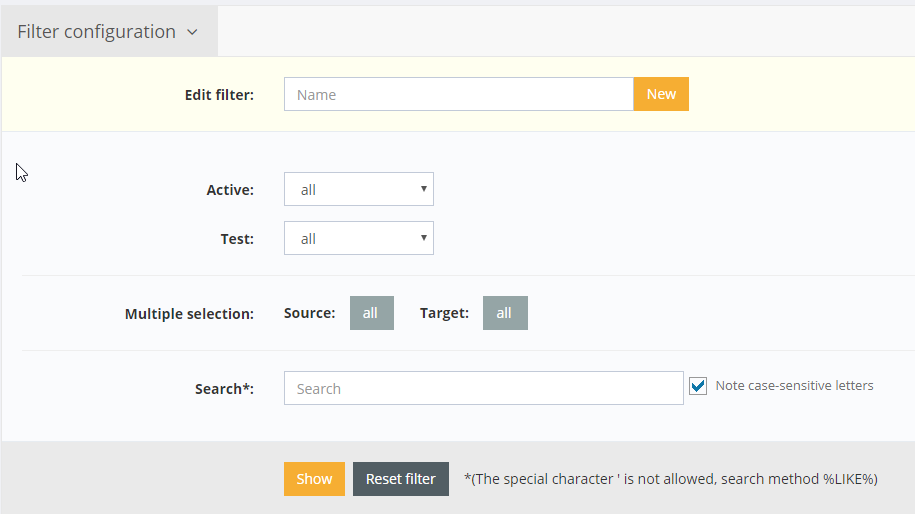
In the filter settings you can filter by source and target module as well as by the status Active and Test.
Import mappings
The dialog for adding a mapping can be called via the right mouse button or by selecting the "+" symbol in the toolbar.
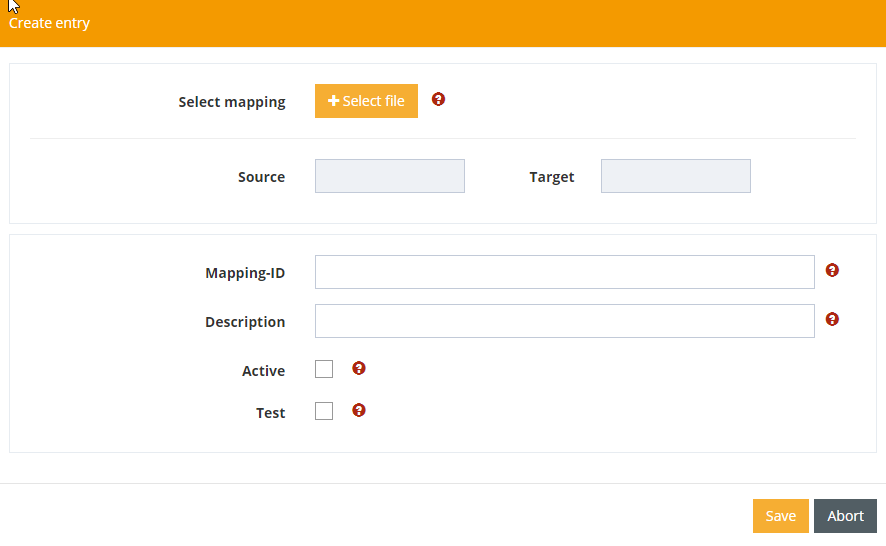
You use the dialog for selecting the mapping to be imported to select the import file.
In the dialog that then appears, you can define the mapping-specific settings for the mapping to be imported.
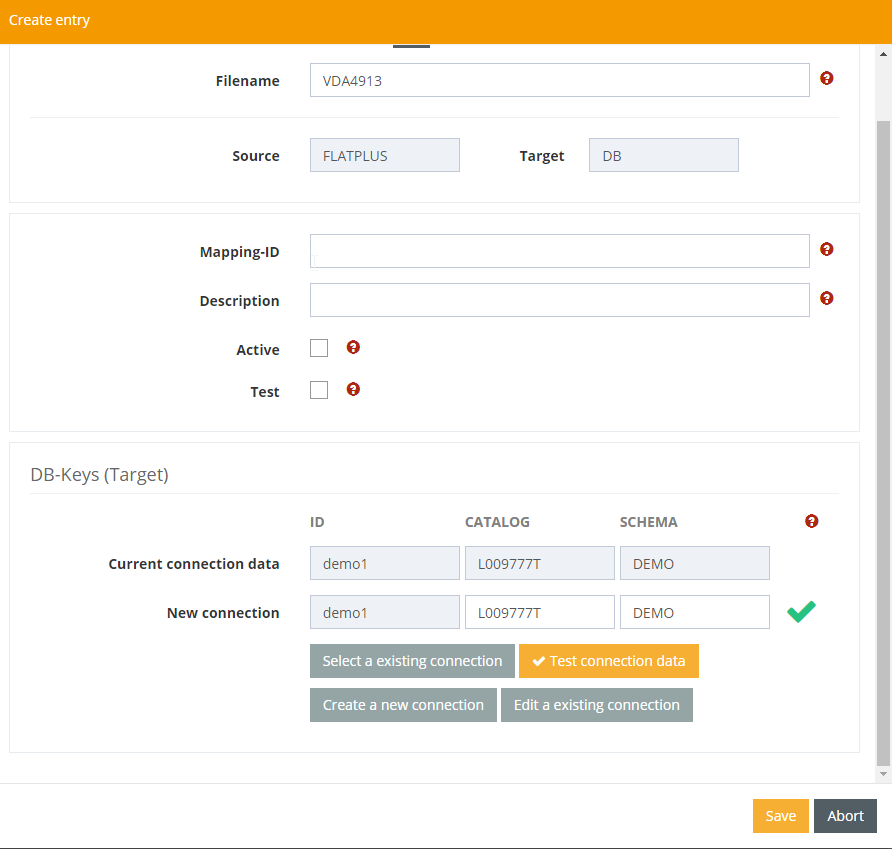
Mapping ID
The unique mapping ID with which a mapping can be started using the RUNMAP command.
Description
A short description of the display in the mapping overview.
Active
A mapping marked as active can be used.
Test
Mapping in test mode is not used for productive use.
DB keys
If database connections are used in mapping, they can be adjusted during the import process. This is regularly the case if mappings are imported that were developed on other systems where the names of the catalogs and schemas used are different. This information can be overwritten in the corresponding input fields.
ID
The database connection ID configured in i-effect
CATALOG
The name of the database catalog
SCHEMA
The name of the schema to be used.
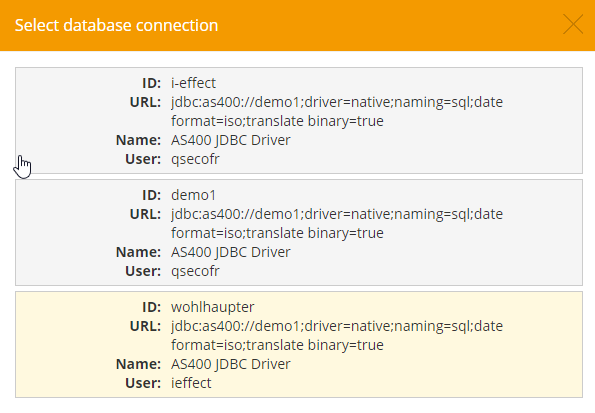
Select existing connection
By using this button one of the connection definitions already existing in the system can be selected.
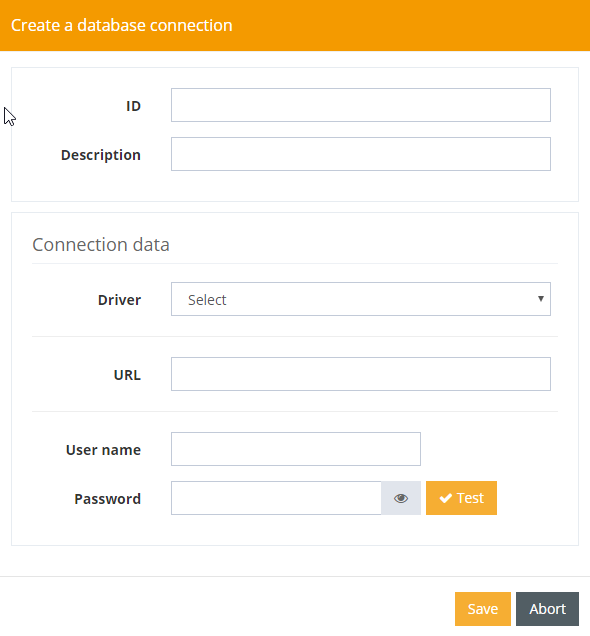
Create new connection
If there is no connection yet, a new database connection can be created using the dialog available here.
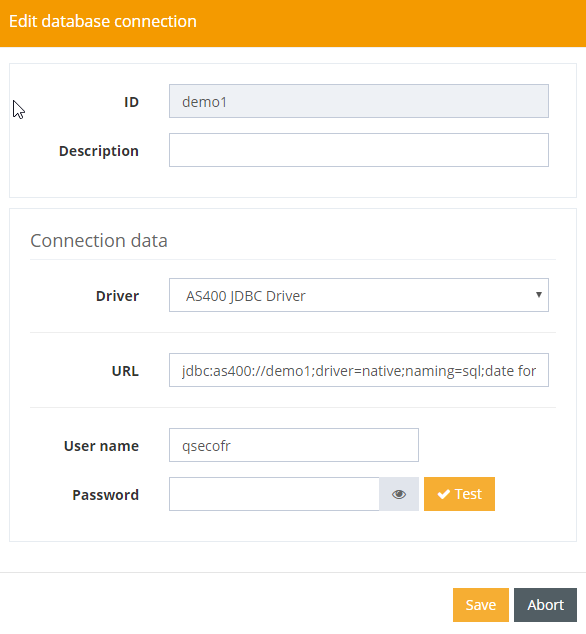
Edit existing connection
For an already existing connection, the existing settings can be adjusted via this dialog.
Test connection data
After entering the connection data for the mappings to be imported, a connectivity check function is available.
A successful test is displayed with a green symbol.

If a connection error occurs, a red symbol appears.

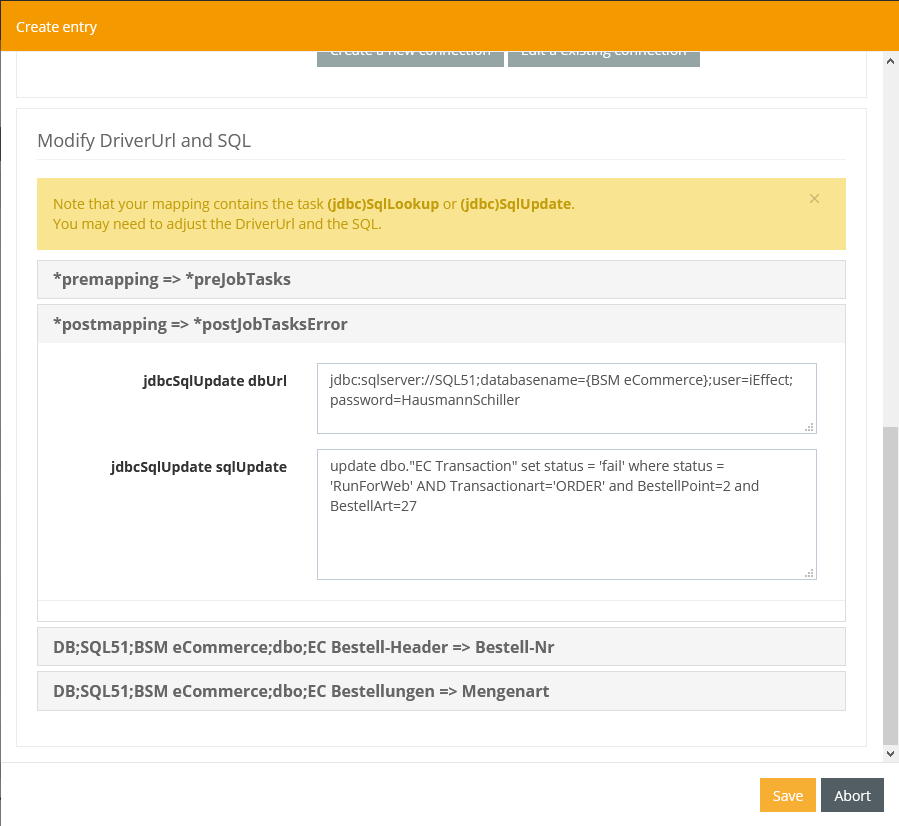
(jdbc)SqlLookups and (jdbc)SqlUpdates
If there are (jdbc)SqlLookups and (jdbc)SqlUpdates in the mapping, they are displayed and can be edited.
Export mappings
A function for exporting is available for passing on to other systems or for saving the existing mappings. It can be selected with the right mouse button.
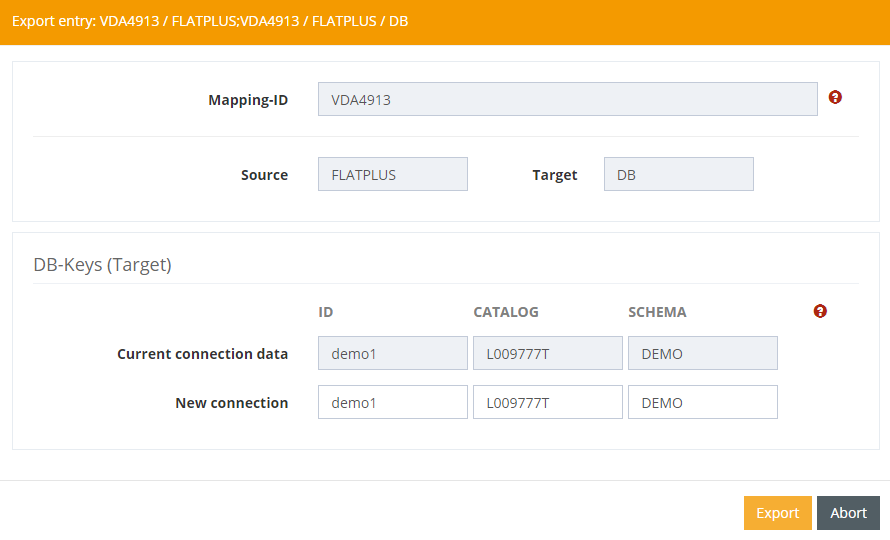
In the dialog that then appears, you can define the mapping specific settings for the mapping to be exported.
DB keys
If database connections are used in mapping, they can be adjusted during export. This is usually the case if mappings are exported that are to be used on other systems where the names of the catalogs and schemas used are different. This information can be overwritten in the corresponding input fields.
ID
The database connection ID configured in i-effect
CATALOG
The name of the database catalog
SCHEMA
The name of the schema to be used.
Export local tables
If database tables are used in a mapping, these tables can be saved from here as a backup file (SAVF). With the two available options, you can save both empty tables and tables filled with data.
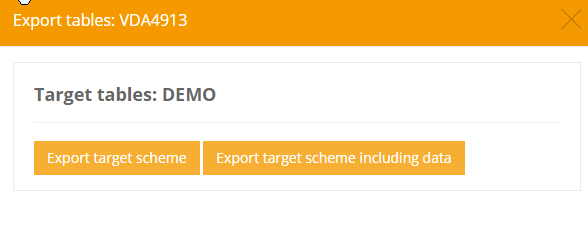
Export target schema
A backup file is created in which the empty tables used in this mapping are stored.
Export target schema with data
A backup file is created in which the tables containing the data used in this mapping are stored.
Change status
The status of a mapping can be changed using this dialog.
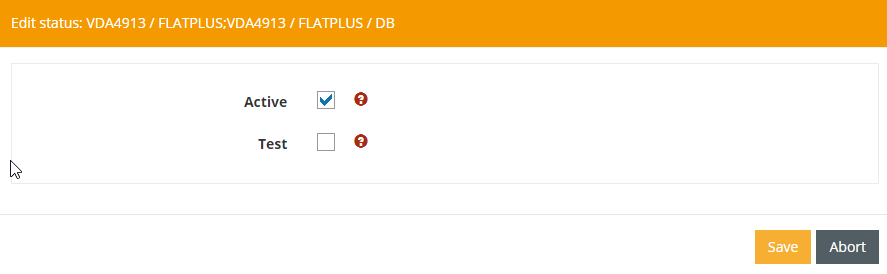
Active
A mapping marked as active can be used.
Test
Mapping in test mode is not used for productive use.
Rename mapping
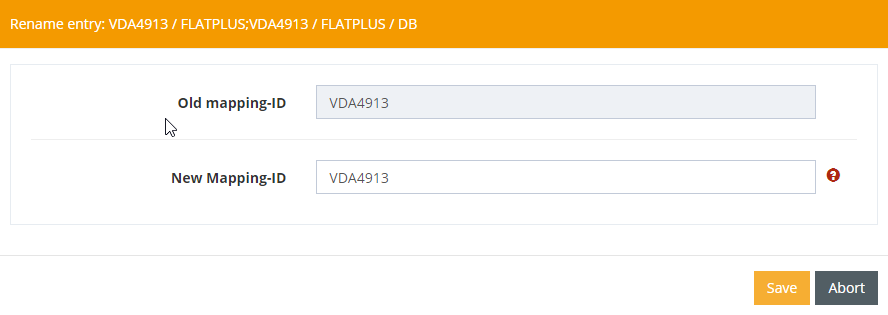
The mapping identification (Mapping_ID) to be used in the RUNMAP command can be changed using this function.
Rename mapping file
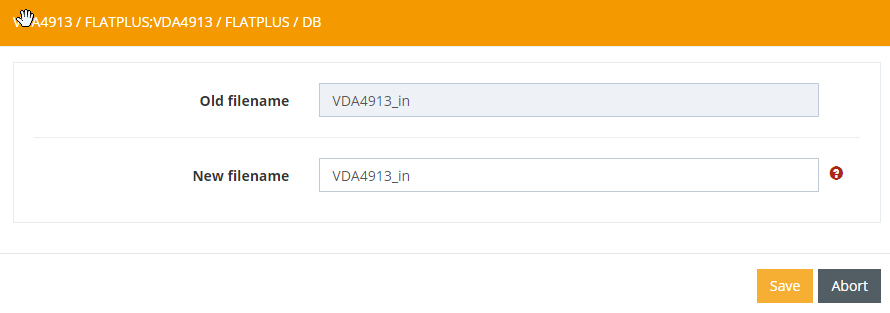
The name of the file in which the mapping is stored on the system can be changed using this function.
Delete mapping
After confirmation of the confirmation prompt, a mapping can be deleted with this function.

Save mapping
Saves the mapping file on the local system.
Details for this mapping
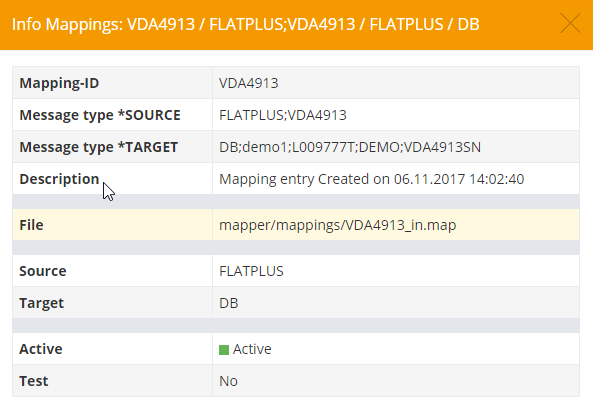
Displays an overview of the mapping setting parameters.
Create PDF report
Generates a PDF report containing all essential mapping parameters.