
Digital Certificate Manager
To call WebControl via the HTTPS protocol, an SSL certificate must be installed on the system.
The Digital Certificate Manager must be installed: 5770SS1, Option 34 (Digital Certificate Manager, part of the operating system)
Configure HTTP Server
Open the IBM Navigator for i at http://<SERVERNAME>:2001 and click on the link "IBM i task page".
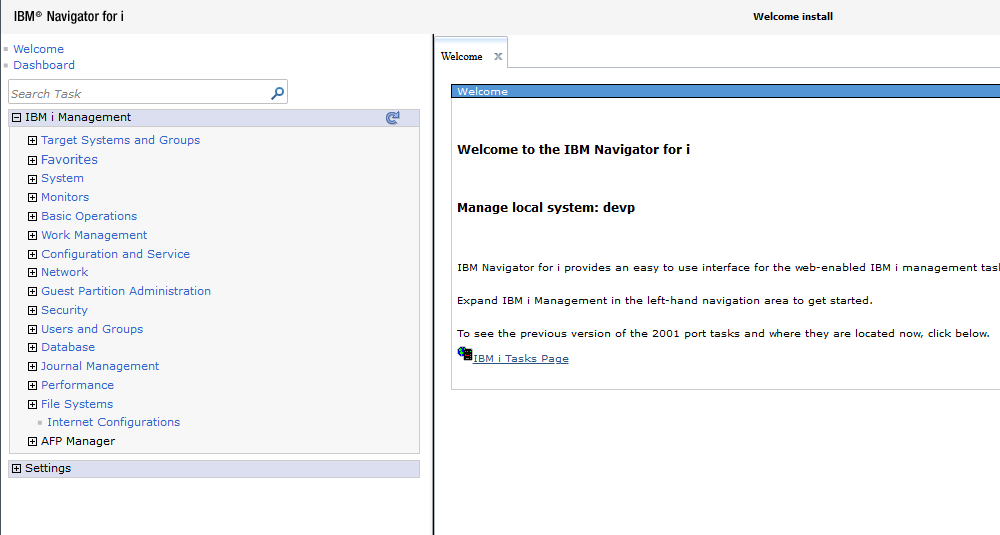
On the next page open the link "IBM Web Administration for i: http" and log in with user name and password.

Under Administration -> HTTP Server, select the Apache version for your installed ZendServer (ZENDSVR6 - Apache or ZENDPHP7 - Apache) in the first dropdown and then the entry Virtual Host *:10080 or Virtual Host *:10090 in the second dropdown.
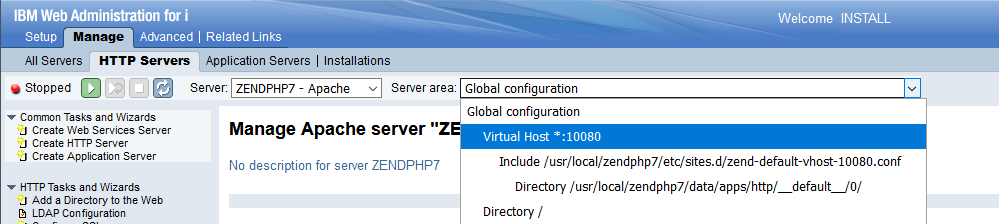
Then open the item "Security" on the left side.
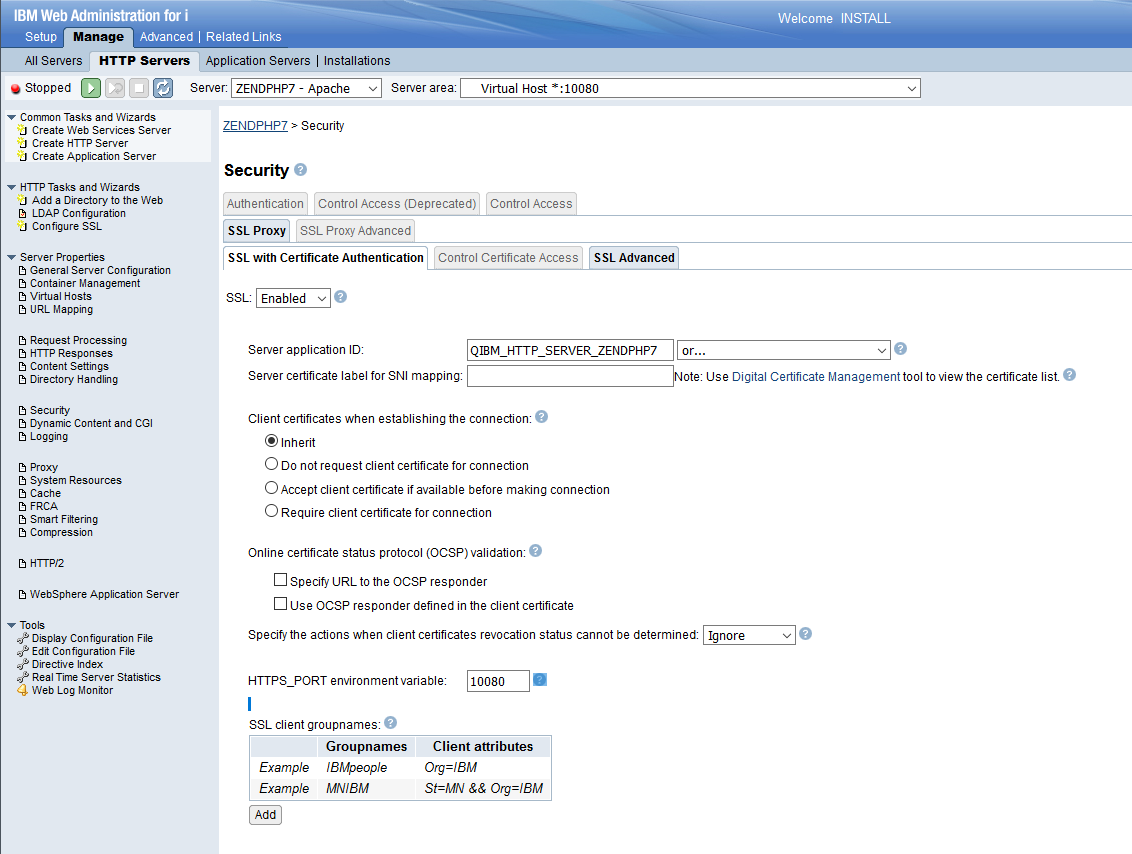
Activate "SSL" in the drop-down menu and select the "Server Application ID" (QIBM_HTTP_SERVER_ZENDSVR6 or QIBM_HTTP_SERVER_ZENDPHP7).
You must also specify an HTTPS port. Take the port 10080 or 10090 used by Zend here.
Save the settings with the Apply button.
Set up certificates
Open the IBM Navigator for i at http://<SERVERNAME>:2001 and click on the link "IBM i task page".
On the next page open the link "Digital Certificate Manager: http" and log in with your username and password.

Now create a keystore for *SYSTEM
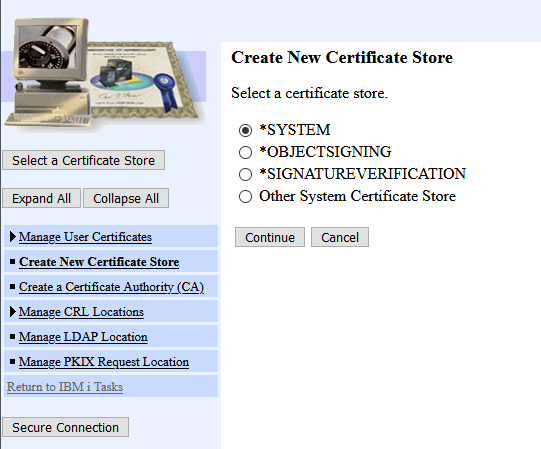
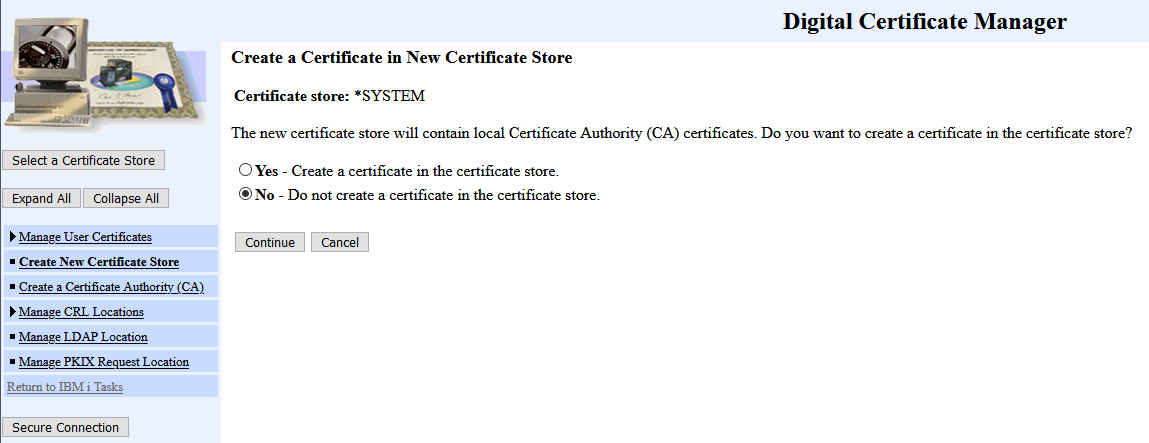
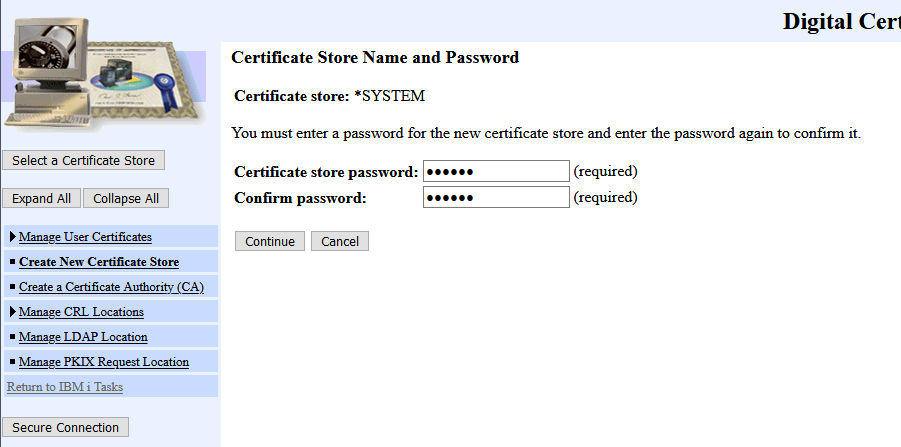
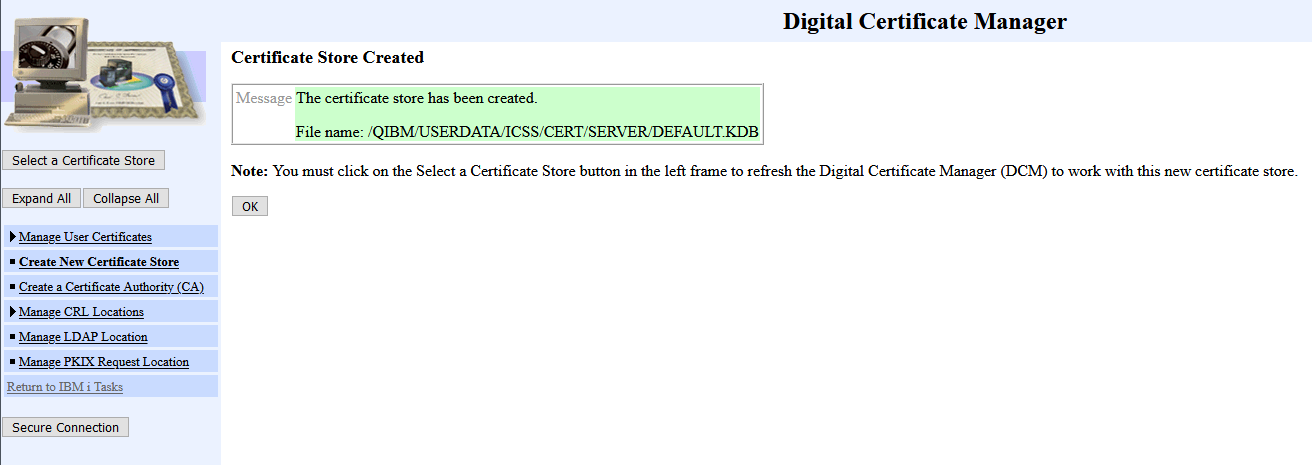
Or select it if it already exists.
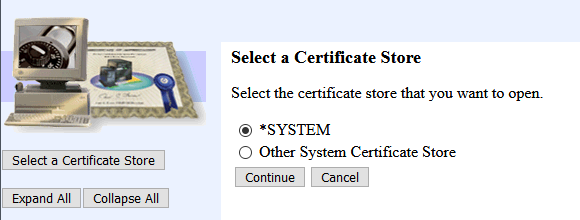
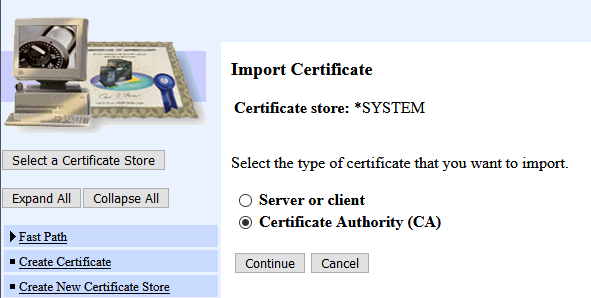
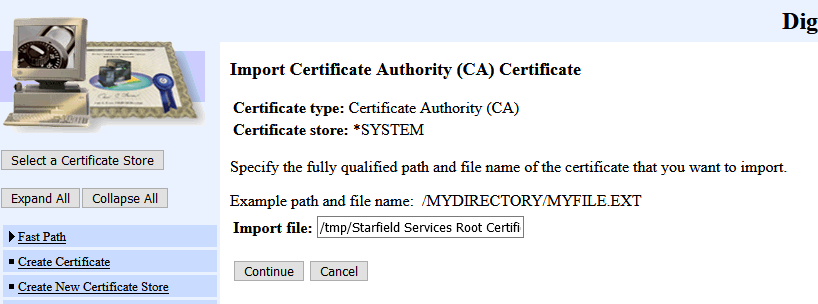
Then import your certificate as server or client certificate. If your certificate depends on other certificates, you must first import these certificates as a certification authority.
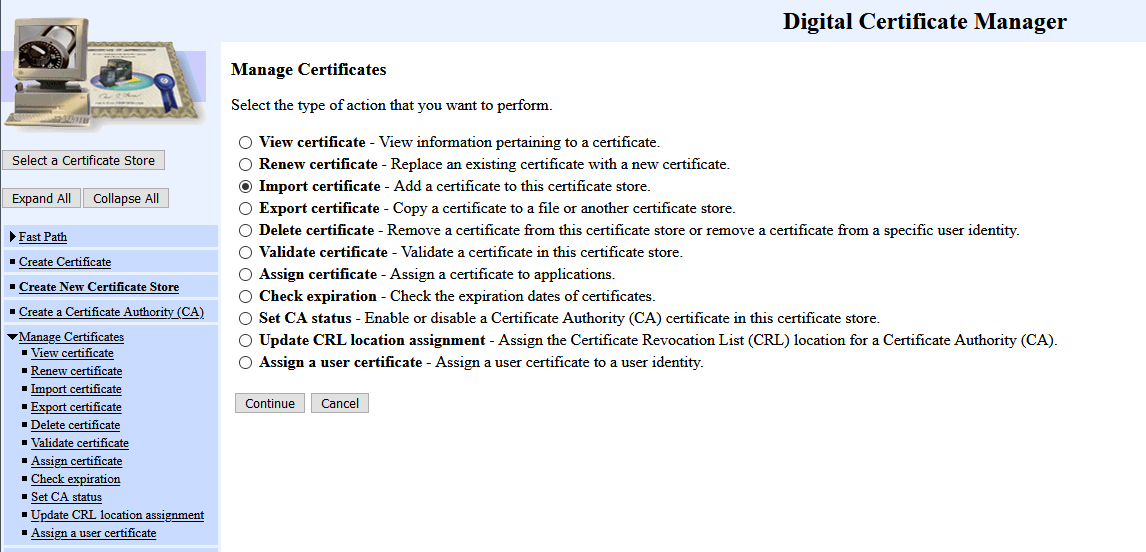
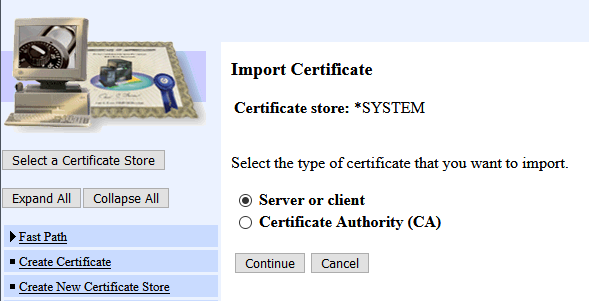
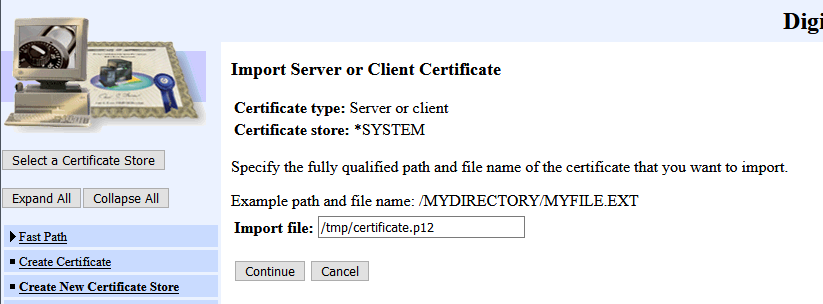
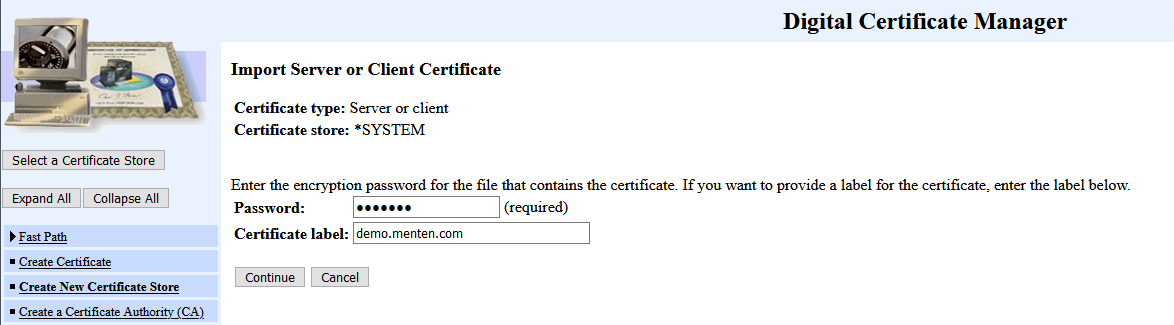
Importing a Certification Authority CA
Assign certificate
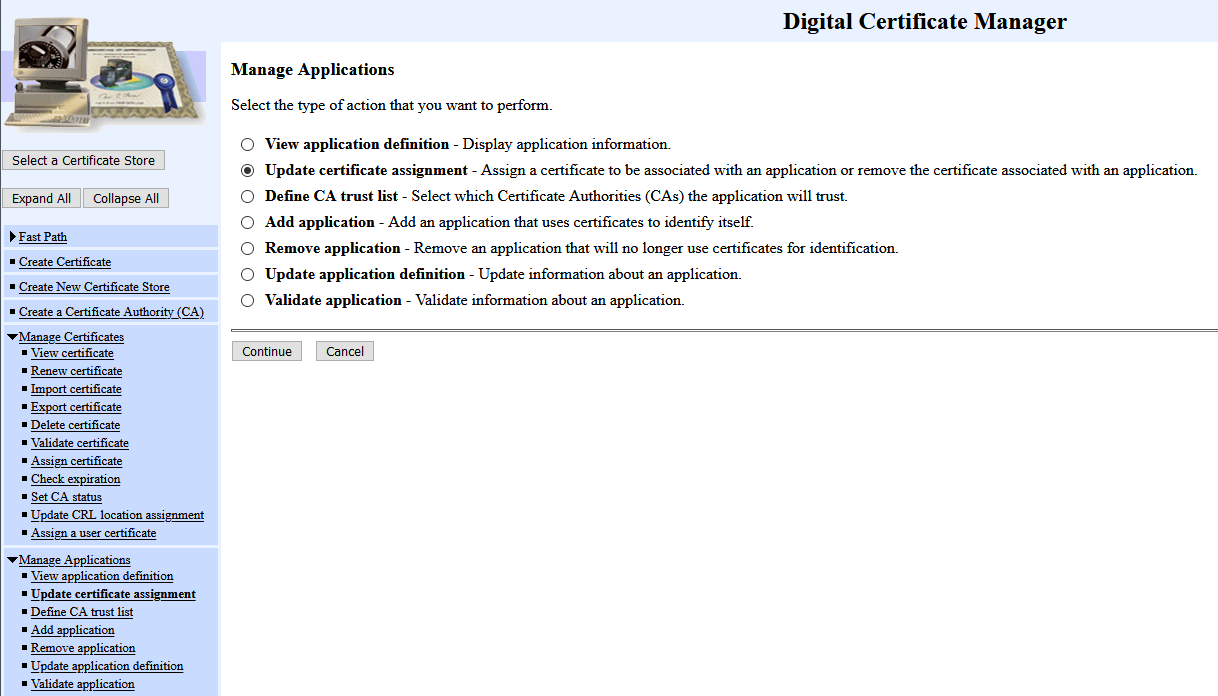
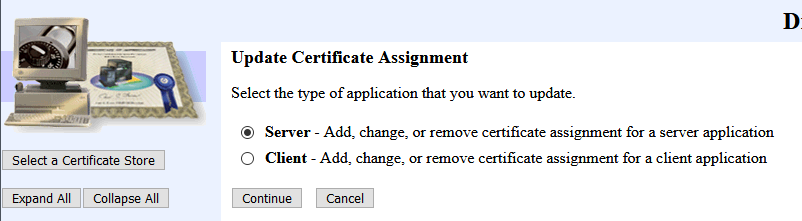
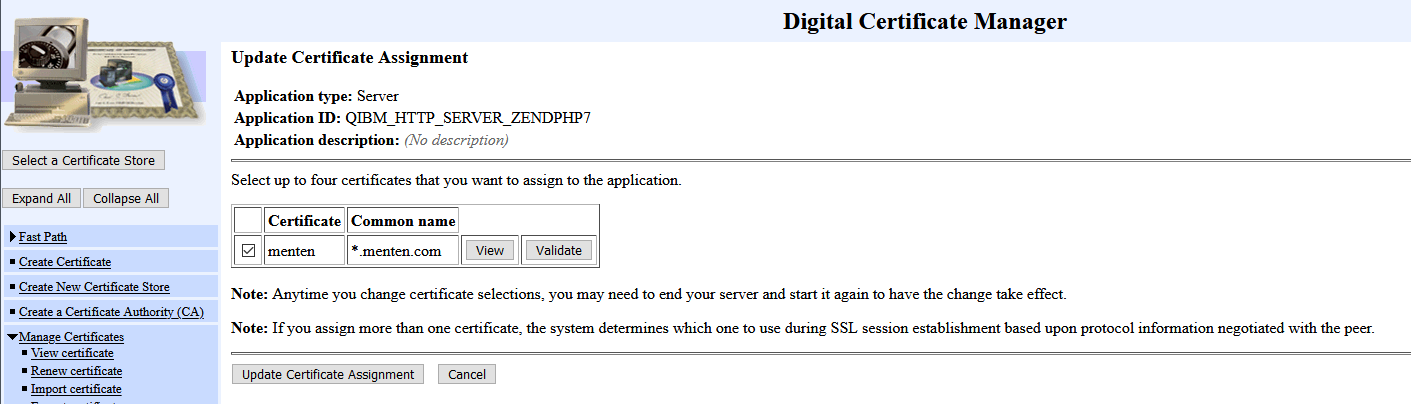
Finally, under "Manage applications" -> "Reassign certificate", assign your certificate to the previously configured "Server application ID".

Restart ZendServer
Restart ZendServer and Apache. To do this, open the menu for your zendServer installation in the green screen with go zendsvr6/zsmenu or go zendphp7/zsmenu and select the following items in sequence:
-
2nd End Zend Server Subsystem
-
11 Stop Apache Server Instance
-
1. start Zend Server subsystem
-
10. start Apache Server Instance
You can now open WebControl with https://<SERVERNAME>:10080/webcontrol or https://<SERVERNAME>:10090/webcontrol