
The operational environment must be set up according to the manufacturers declaration and the integrity of the program file must be guaranteed in order to run i-effect *OCSP.
If the self test detects a change in the program file, the i-effect *OCSP -Subsystem cannot be started. In this case an entry in the (internal) logbook will be made (see „System monitoring").
OCSP Keystore
Is furnished with an empty keystore in which certificates required for verification can be stored.
Not all signatures of signed files contain the signing certificate (Public Certificate) that is required for verification, for example signed EDIFACT files. This is also the case with cer-tificates that make up the certificate chain to the root certificate.
In these cases it is necessary to import the certificates and their corresponding certificate chain into the i-effect *OCSP-Keystore.
i-effect *OCSP's Keystore is located in the i-effect -Installation directory in the sub folder "OCSP" and is named "2ocsp_keystore.p12".
i-effect *OCSP's Keystore is managed using program "i-effectKeyManager.jar" that is also located in the sub folder "OCSP/Tools" of the installation directory.
This program can be used to import, delete and, if required, export certificates. It is also possible to change the keystore's password (the new password must be updated and the sub system restarted using the i-effect *OCSP-configuration dialog).
A detailed explanation of "i-effectKeyManager.jar" use can be found in the manual under „Grafische Zusatzanwendungen".
i-effect's- the integrated solution for IBM System i - manual can be downloaded from the website http://www.i-effect.com. Select the download area and then the sub category "manuals".
i-effect *OCSP Start up
i-effect - the integrated solution for IBM System i - has two ways to start the subsystem:
-
Start the subsystem using the i-effect-menu, Option 85
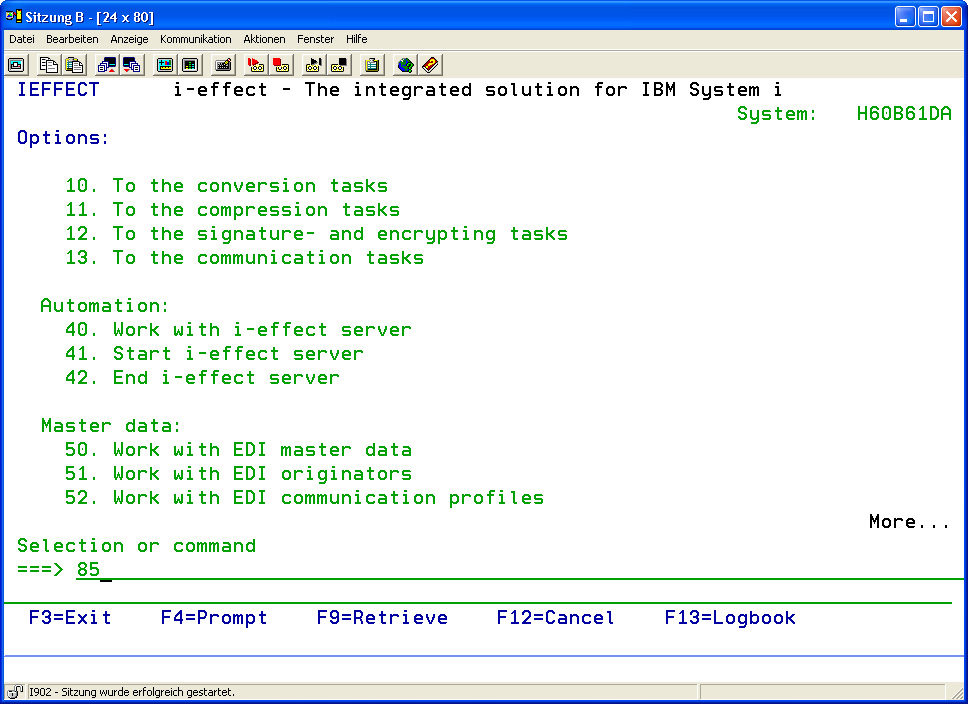
Selecting Option 85 from the i-effect-menu opens the overview for starting i-effect subsystems (here is the second page of the i-effect-menu).
Entering *OCSP and pressing enter starts the subsystem. -
Directly starting the subsystem.
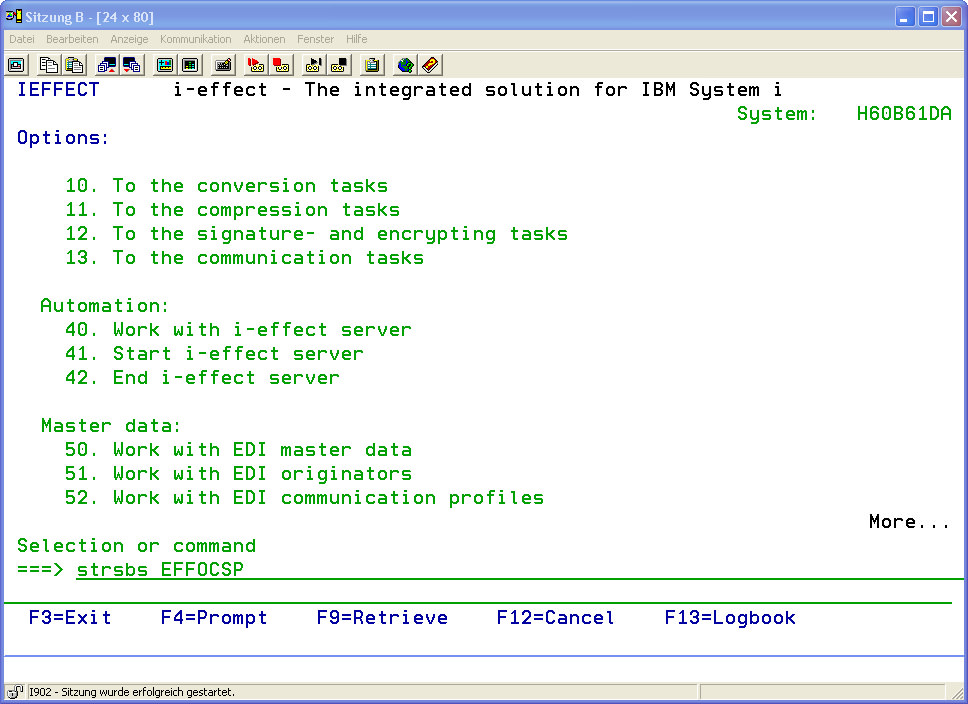
i-effect's *OCSP-Subsystem can be started directly using the "STRSBS" with the subsystem name "EFFOCSP" as a parameter.
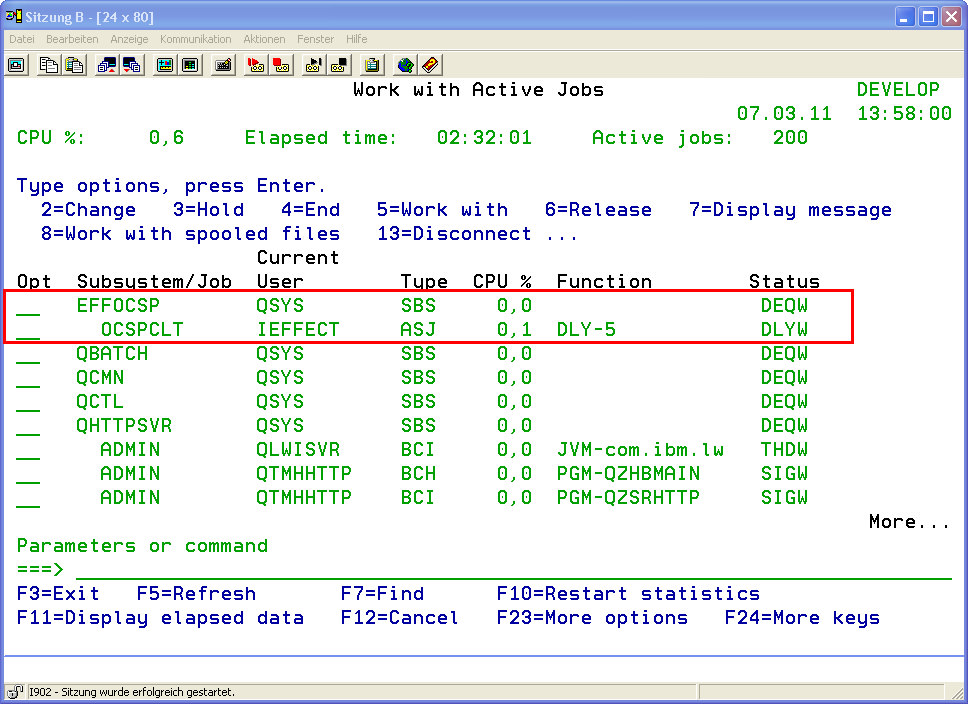
Using "WRKACTJOB" will display if the subsystem is running or was started correctly:
Creating a Verification Job
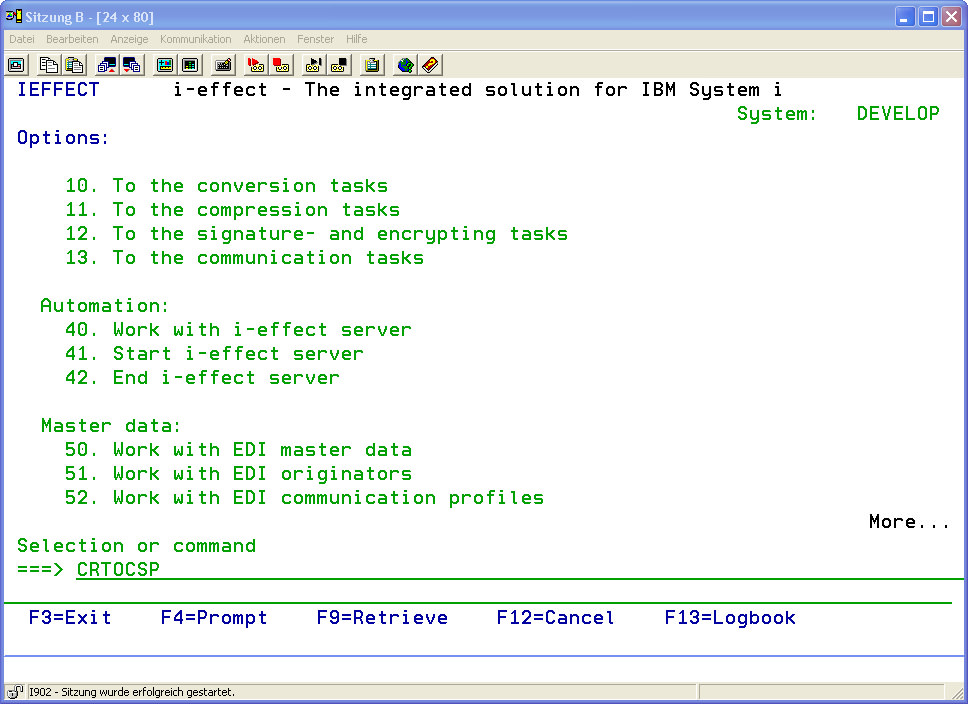
Entering the command "CRTOCSP" and pressing the Function key F4 are used to create a verification job.
If i-effect's *OCSP subsystem is not already running it will be started when this command is entered.
Pressing F4 opens a overview of the command's possible parameters
Note:
The "CRTOCSP" command only creates verification jobs. The verification job sends the information regarding the files for verification and where required in which format the signed files are in. IBM i's security concept can define who has the authority to run the "CRTOCSP" command to prevent misuse of i-effect *OCSP.
The parameter settings of the verification job are made on the first page, as well as file path specifications and the type of verification.
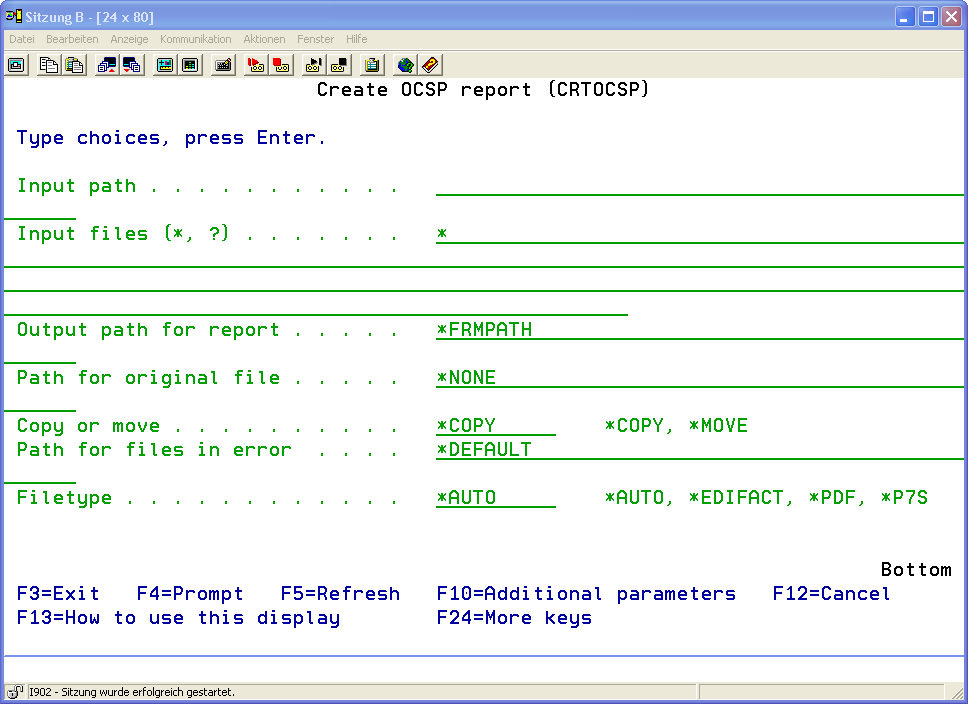
|
Input Path [FRMPATH] |
The absolute directory path, where the files for verification are located. |
||||||||
|
Input Files (*,?) [FRMIFSFILE] |
File name or file pattern of the files for verification. |
||||||||
|
Output Report Path [REPORTPATH] |
Optional: absolute path for the output directory of the report. Default Setting:
|
||||||||
|
Original File Path [OFILEPATH] |
Optional: specifies an absolute path for storage of the original file. The verified file will either be copied or moved from its original location to the directory defined here.
|
||||||||
|
Further Special Value: |
|
||||||||
|
Copy or Move [COPYMOVE] Possible Values: |
|
||||||||
|
Error Path [ERRPATH] |
Optional: Path where files will be moved that could not be verified.
|
||||||||
|
File Type [FILETYPE] Possible Values: |
|
After the required parameters are specified, job generation must be confirmed by using the enter key. It is assumed that the i-effect *OCSP subsystem is configured with the default values (IP = „localhost", Port = 22010).
If the configuration was changed and the subsystem uses a different IP address or a differ-ent port the command must also be configured to reflect this configuration.
If a job is sent to the wrong IP address or port an error message will occur. The verification job will not be carried out in this case.
To reach the second page of command configuration, the Function Key F9 must be pressed within the first configuration page of the CRTOCSP command. By F9 all parameters of the command can be edited. It is then possible to use thePAGE-UP or PAGE-DOWN - keys to switch between the pages.
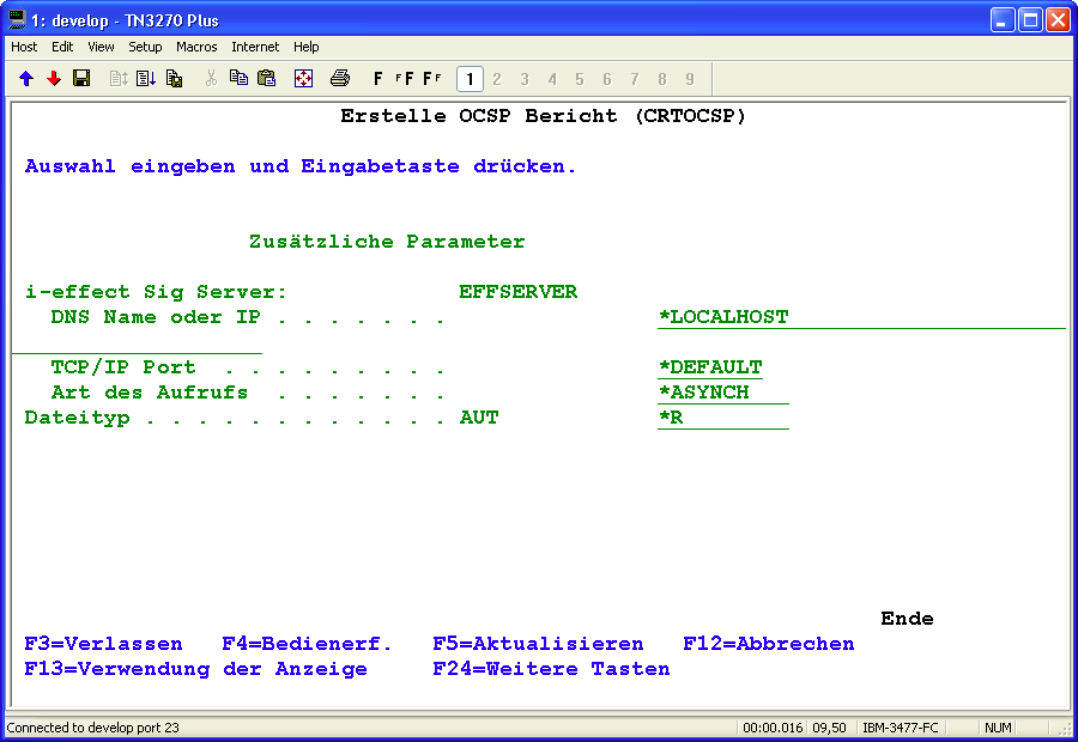
On the second page the settings for the subsystem can be edited.
The Second configuration page of „CRTOCSP„:
|
i-effect *OCSP Server [EFFSERVER] |
|||||
|
DNS Name or IP |
Name or IP-Address of the OCSP-Subsystem, to which it will bind iteself.
Default Setting: |
|
|||
|
TCP/IP Port TCP/IP Port of the OCSP Subsystems
Default Setting: |
|
||||
|
Type of Call |
The way the server will handle the call.
|
||||
|
File Type [AUT] |
Optional: Specification of access rights to the report. Determines the data rights for *PUBLIC for the report file. |
|
*R |
Read Only |
|
*RX |
Read and execute |
|
*RW |
Read and write |
|
*RWX |
Read, write and execute (all) |
|
*X |
Execute only |
|
*W |
Write only |
|
*WX |
Write and execute |
|
*NONE |
No authority |
i-effect *OCSP Shutdown
There are two ways to shutdown the subsystem:
-
End the subsystem using the i-effect-menu with option 86
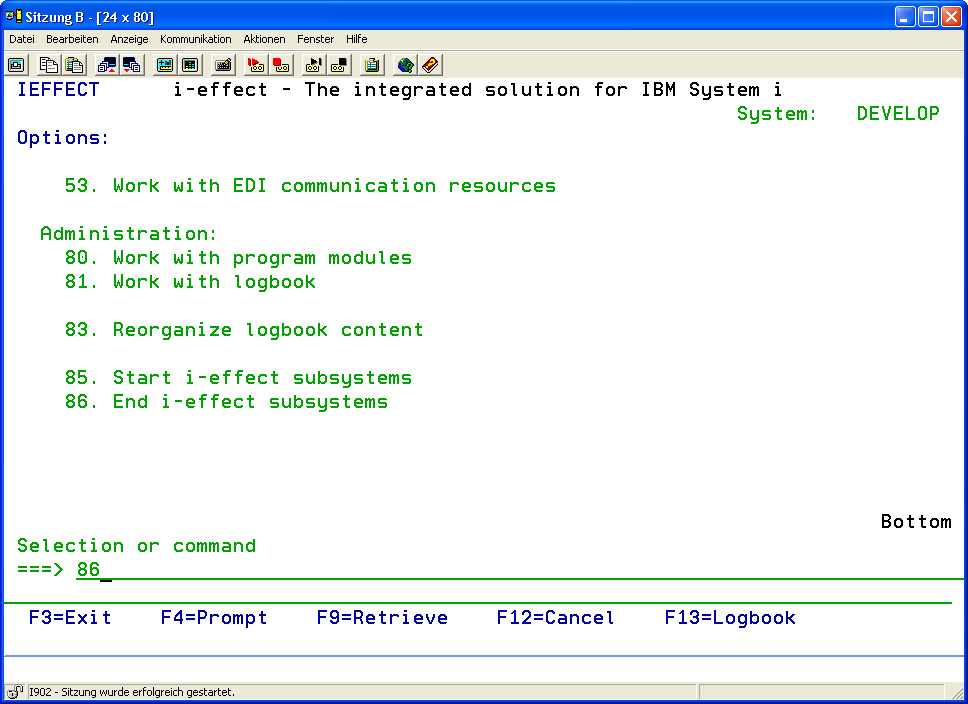
Option 86 confirmed by enter opens the menu for subsystem shutdown.
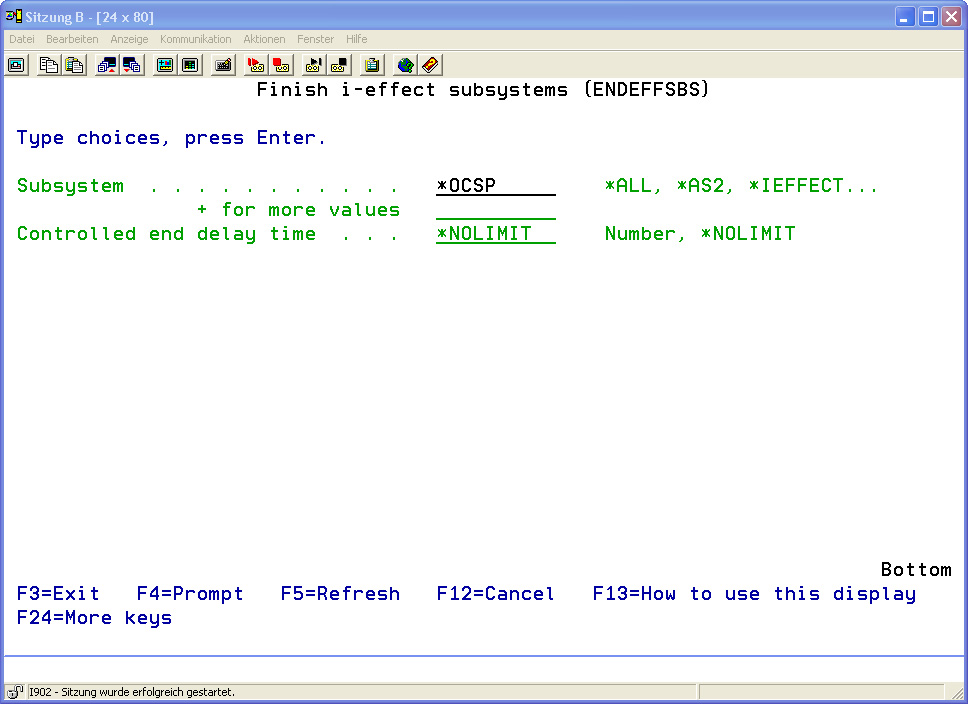
Entering "*OCSP" and confirming with the "enter key" shuts down the i-effect *OCSP subsystem. -
Direct shutdown of the subsystems
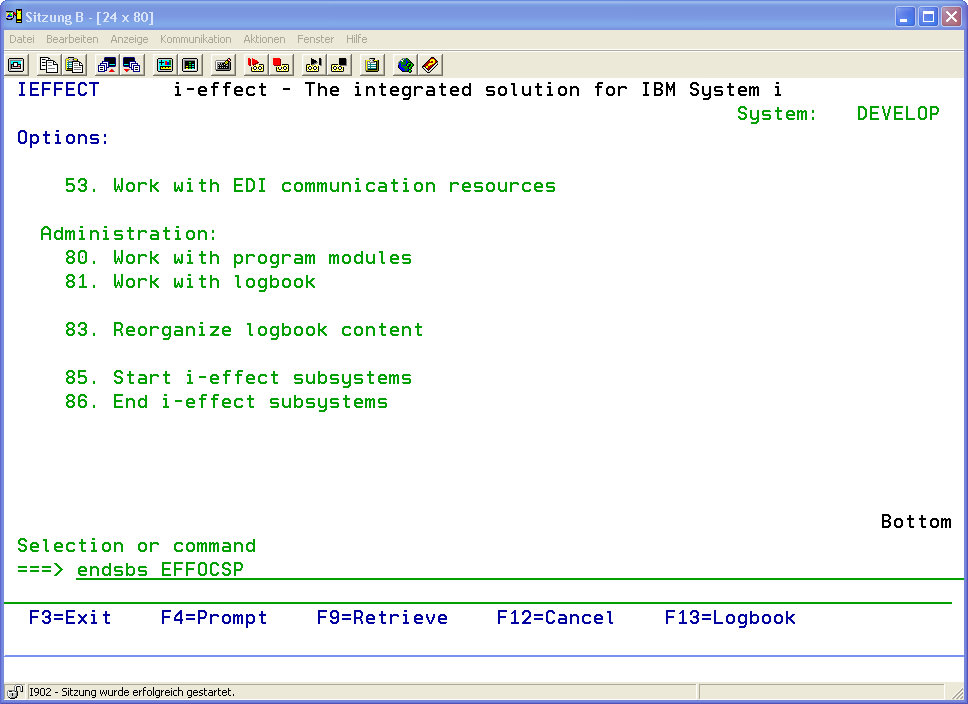
The i-effect *OCSP subsystem can also be directly shutdown using the "ENDSBS" command and the subsystem "EFFOCSP" as its parameter.