Step 1
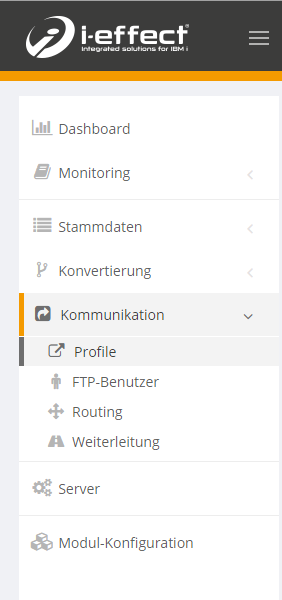
To create a new e-mail profile please go to the tab Communication → Profiles.
Step 2
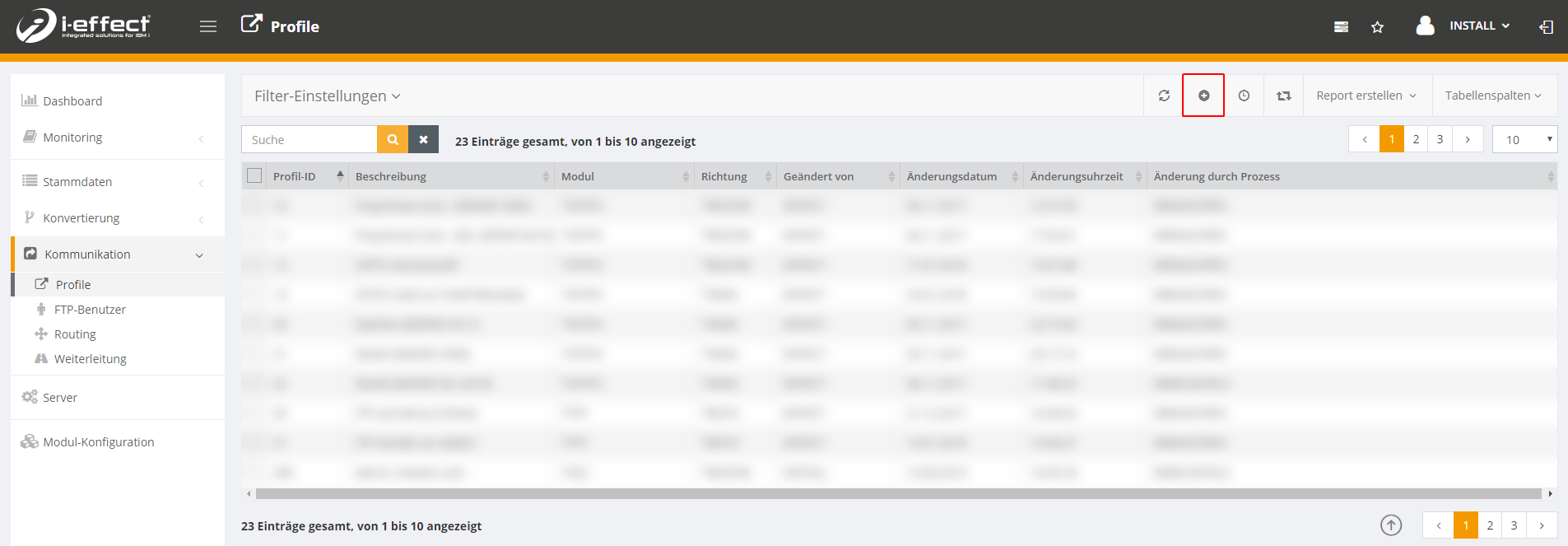
Then click on the ICON "Add new profile".
Step 3 (1/2)
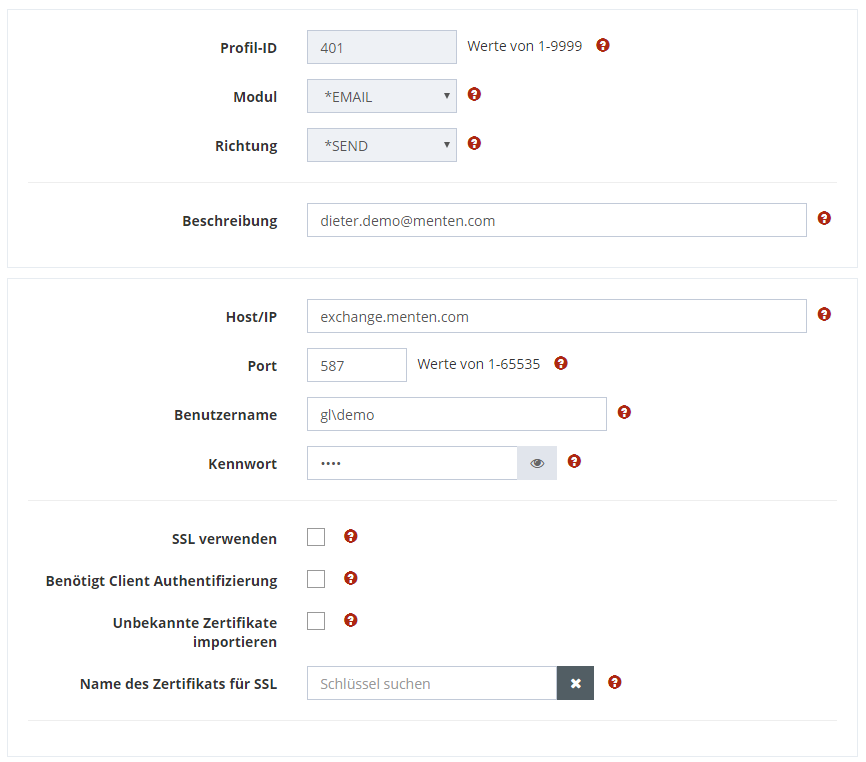
When creating the profile, please select *EMAIL as module and *SEND as direction.
HOST/IP
Specify the IP or DNS name of the mail server from which you want to retrieve e-mail.
Port
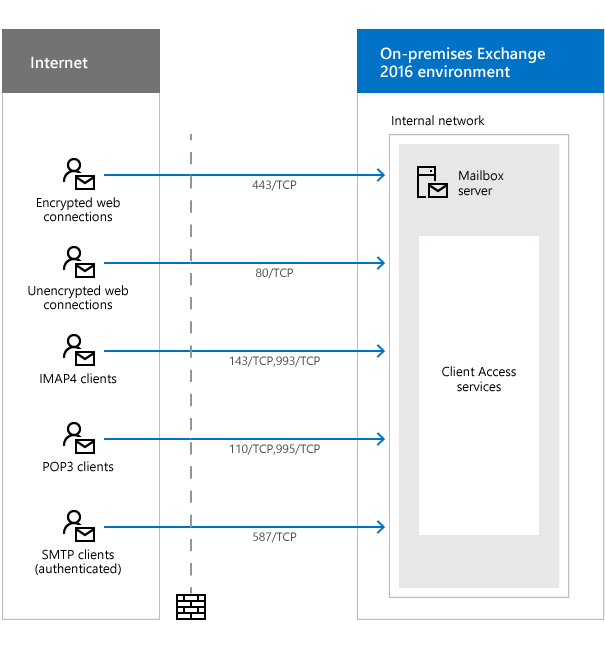
Specify the port. Note that the ports differ depending on the connection type.
Example of the default configuration of the port in an Exchange 2016 environment
Username & Password
Enter your user name and password.
Step 3 (2/2)
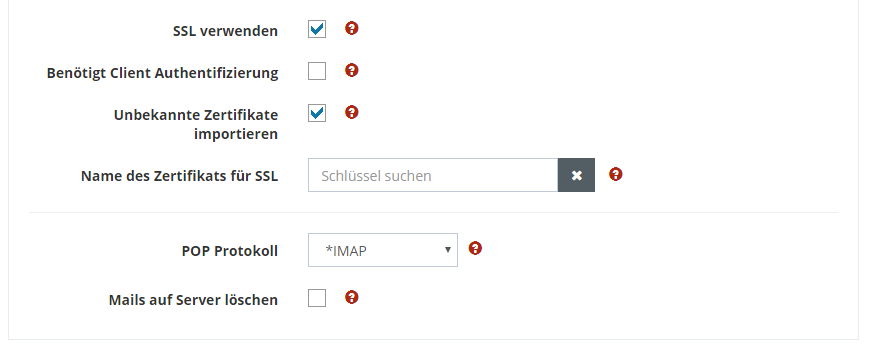
In addition to the user details of the mailbox, you must also make advanced connection settings.
Use SSL
If you select this option, communication is established using the Secure Socket Layer (SSL) protocol. This option is recommended.
Requires client authentication
Select this option if you want to use a certificate to authenticate yourself when establishing a connection. This option is not normally used.
Import Unknown Certificate
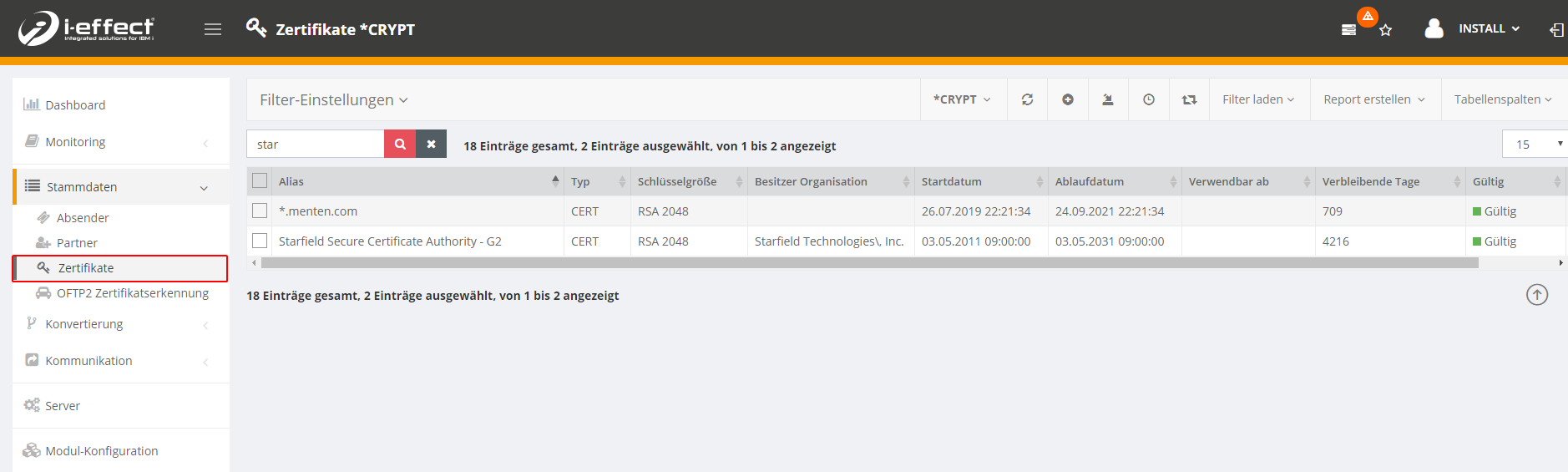
If you have selected the option "Import unknown certificates", the certificates which are not in your CRYPT keystore will be imported. You can view the content of the keystore via the menu item Master data →Zertifikate.
Here you see the certificate "*.menten.com" and the certificate of the chain "Starfield Secure Certificate Authority - G2".