
Create first mapping
To create a mapping please proceed as follows:
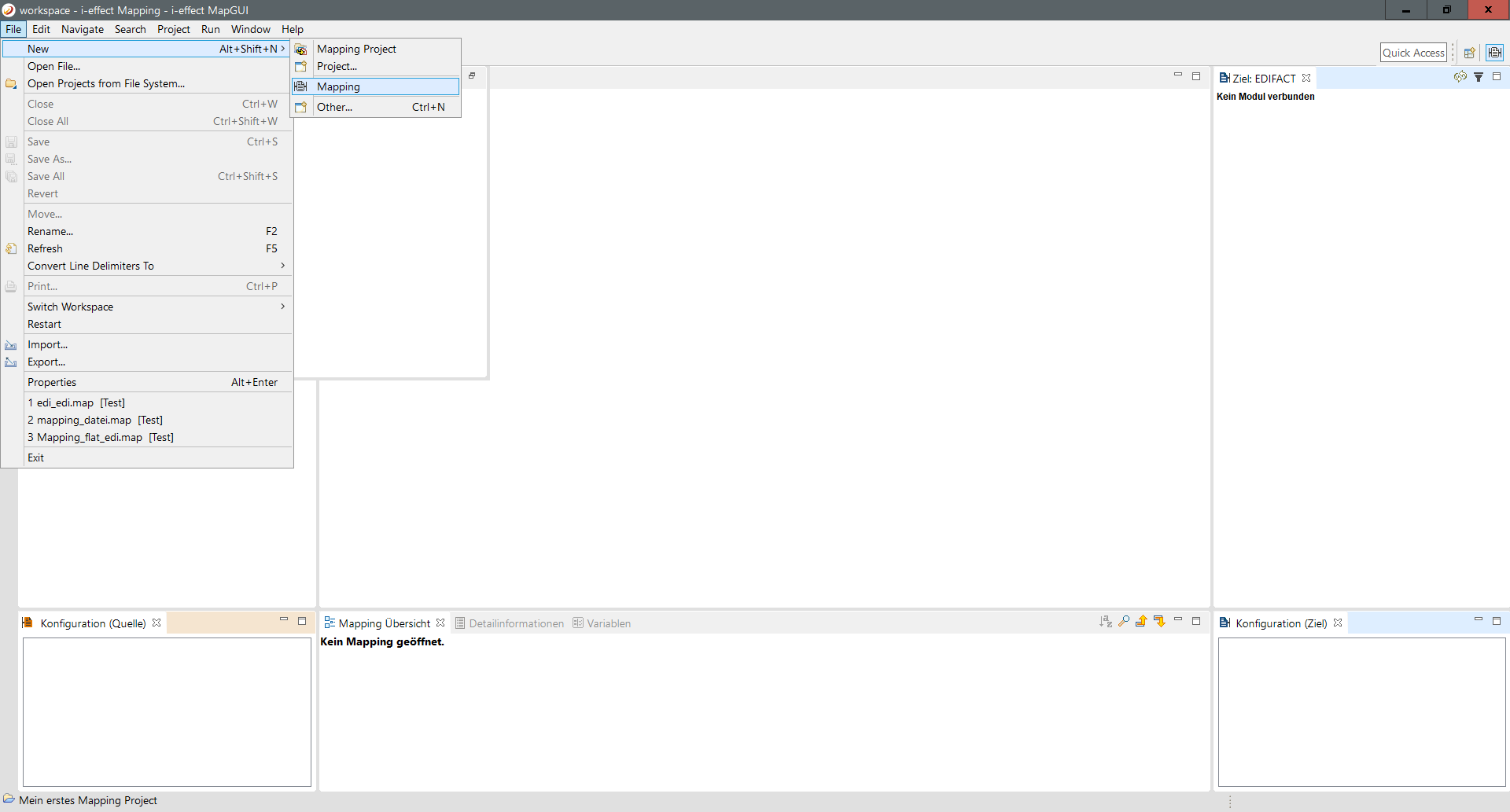
Step 1 - Begin a new mapping:
Navigate to File → New → Mapping
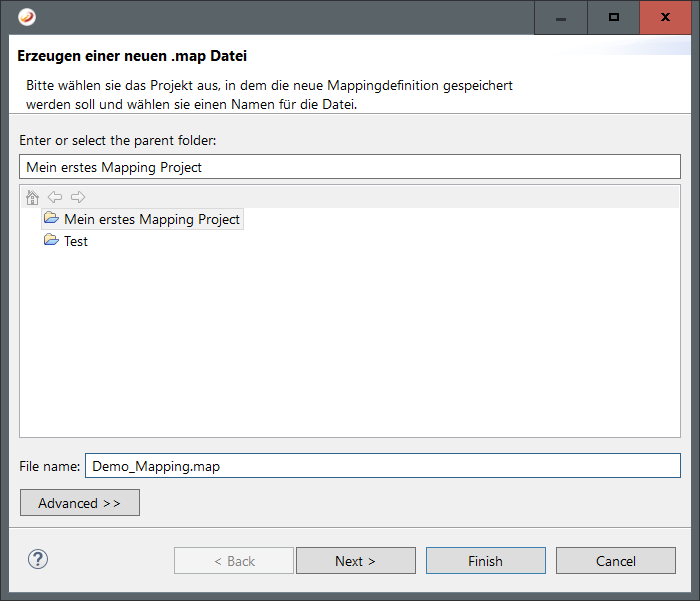
Step 2 - Specify file name:
Specify the file name.
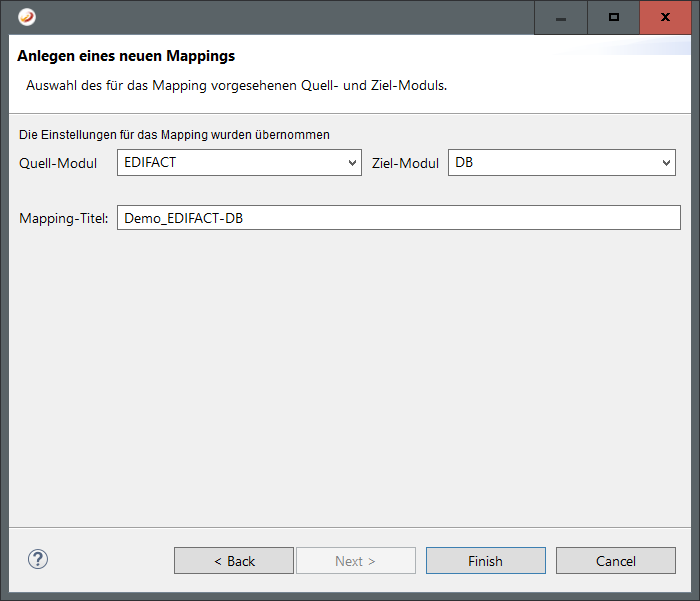
Step 3 - Select source and target module:
Now click next to select the source and targetmodule. Also you can choose a title for the mapping at this point:
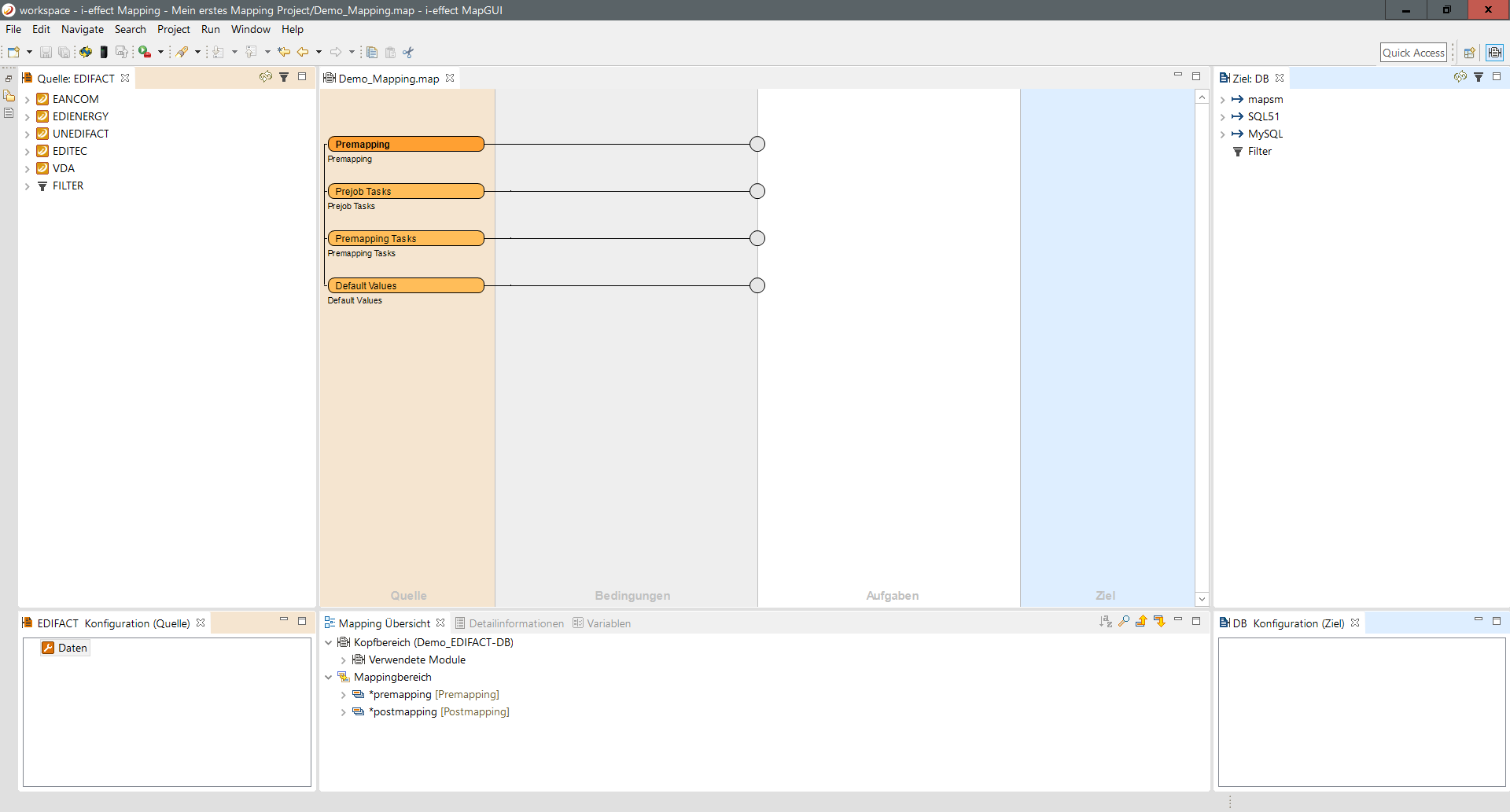
Step 4 - Ready-made Mapping:
The new mapping has now been created and loaded successfully. You should see the following screen.
Database connection does not exist
To add a database connection , please proceed as follows:
Step 1:
Go through Window → Preferences to the point i-effect
Step 2:
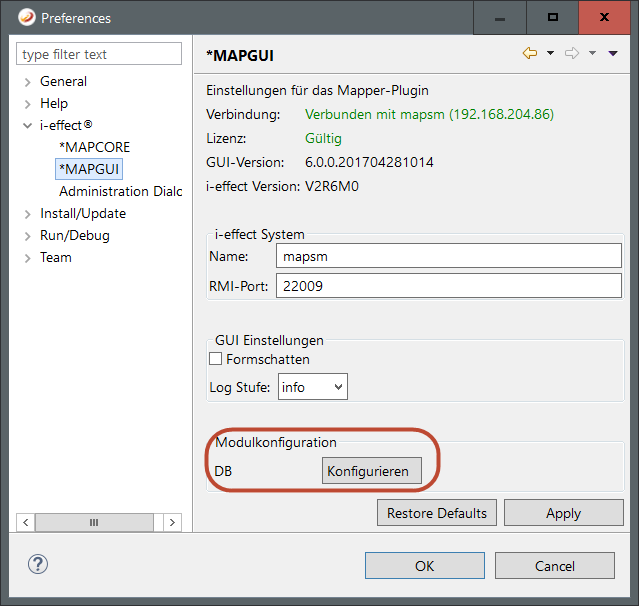
There you go to the tab Mapgui.
Step 3:
Now click on configure DB.
Step 4:
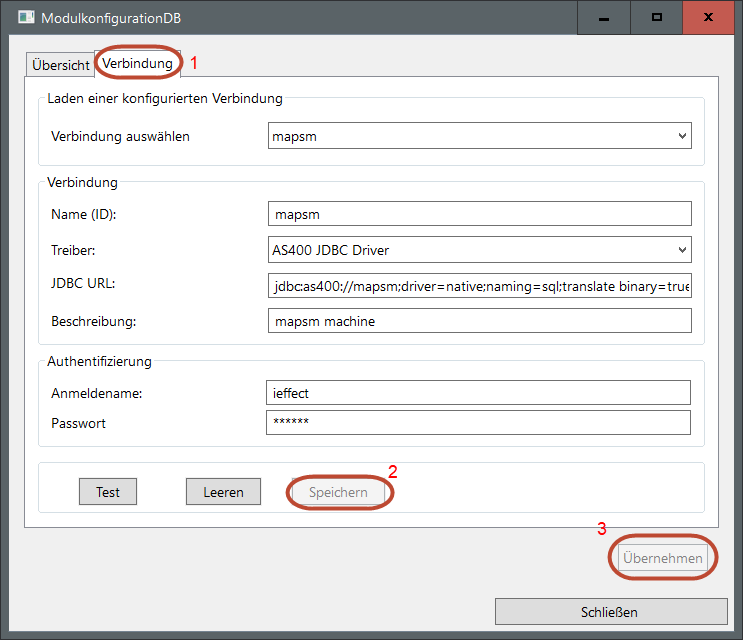
Click on connections and enter your parameters and click save and apply.
Step 5:
Now restart your Eclipse by clicking File → Restart
Step 6:
Subsequently, both modules are loaded.