
This tutorial explains the simple setup of a SFTP communication with i-effect.
Step 1 - Creating a communication profile
In the first step, a separate server profile must be created for sending a file. To do this, please proceed as follows:
-
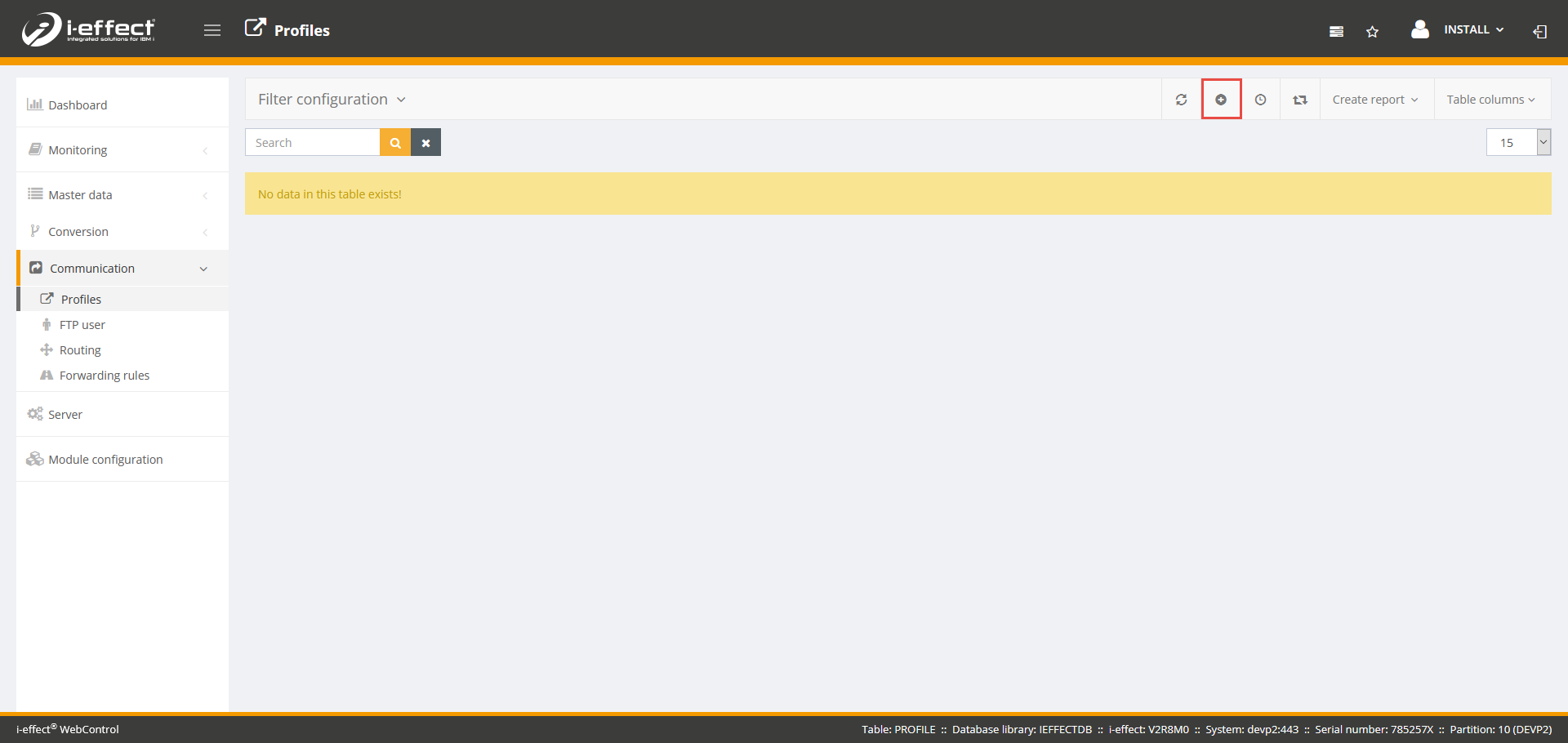
Open the Communication menu item and navigate to the Profiles page.
-
Now click on the plus symbol to create a new communication profile.
-
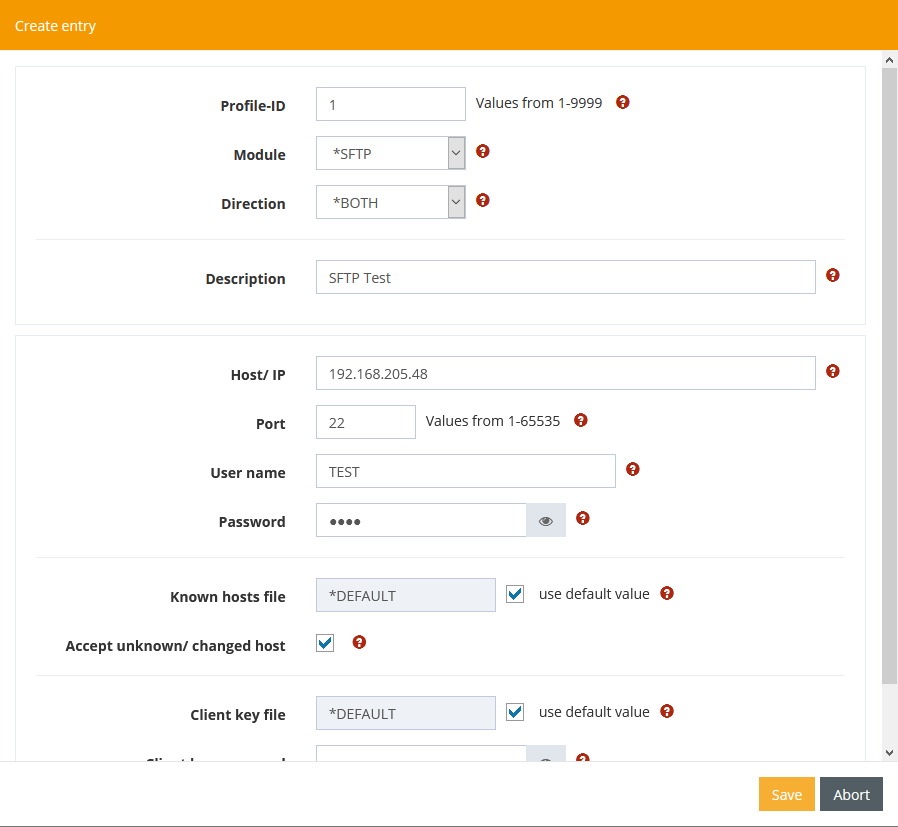
Fill out masks with your data. Make sure that you accept the following selection accordingly
-
Module: *SFTP
-
Direction: *BOTH
-
Accept host: Check this box if you want to receive the host key/public key for the first time, uncheck it after the first test.
-
-
Please select the remaining configuration settings yourself.
Step 2 - Perform test run
After you have successfully created an SFTP client profile and entered all necessary information, we can now test the sending of the file. Please proceed as follows:
-
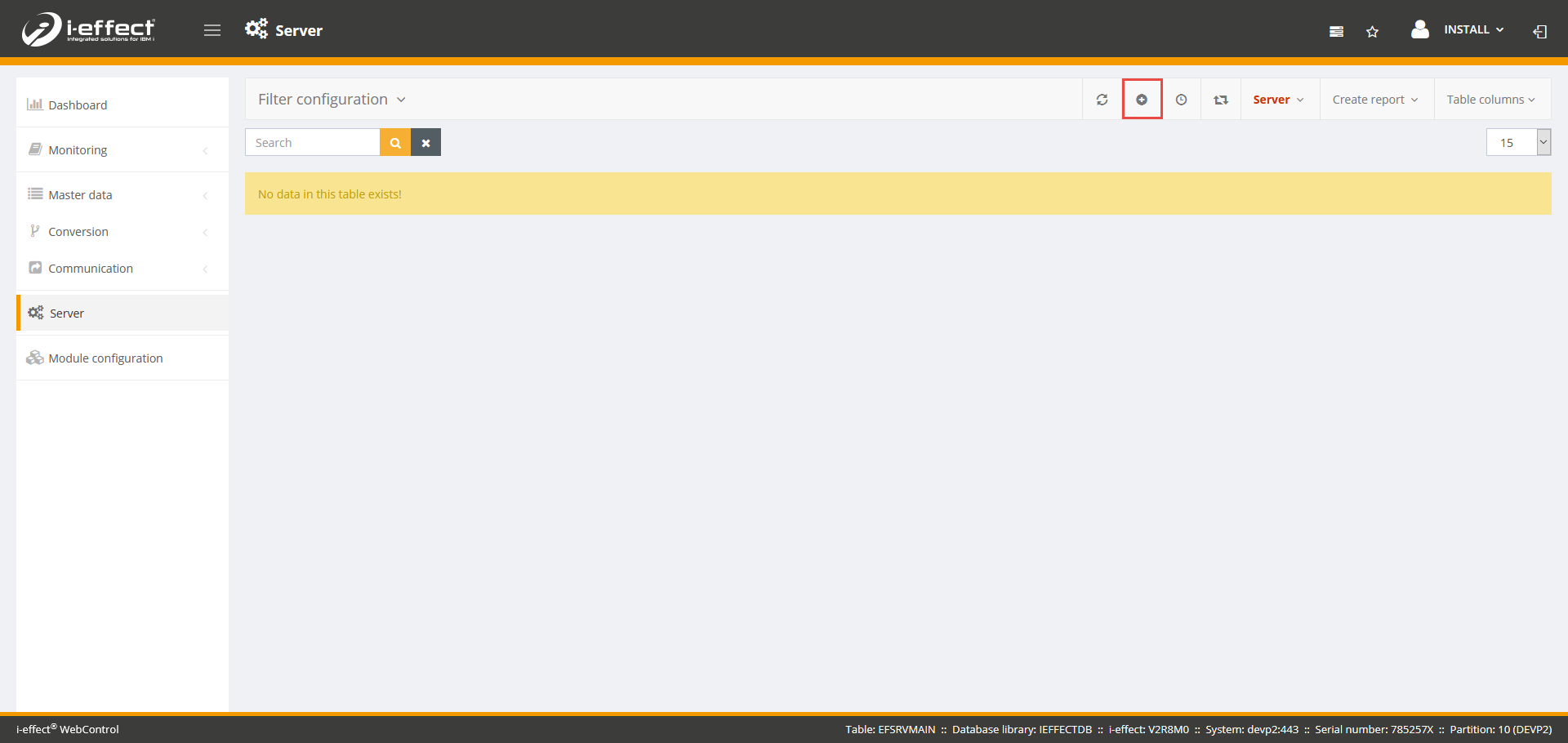
Navigate to the menu item Server and create a new server entry by clicking on the plus sign.
-
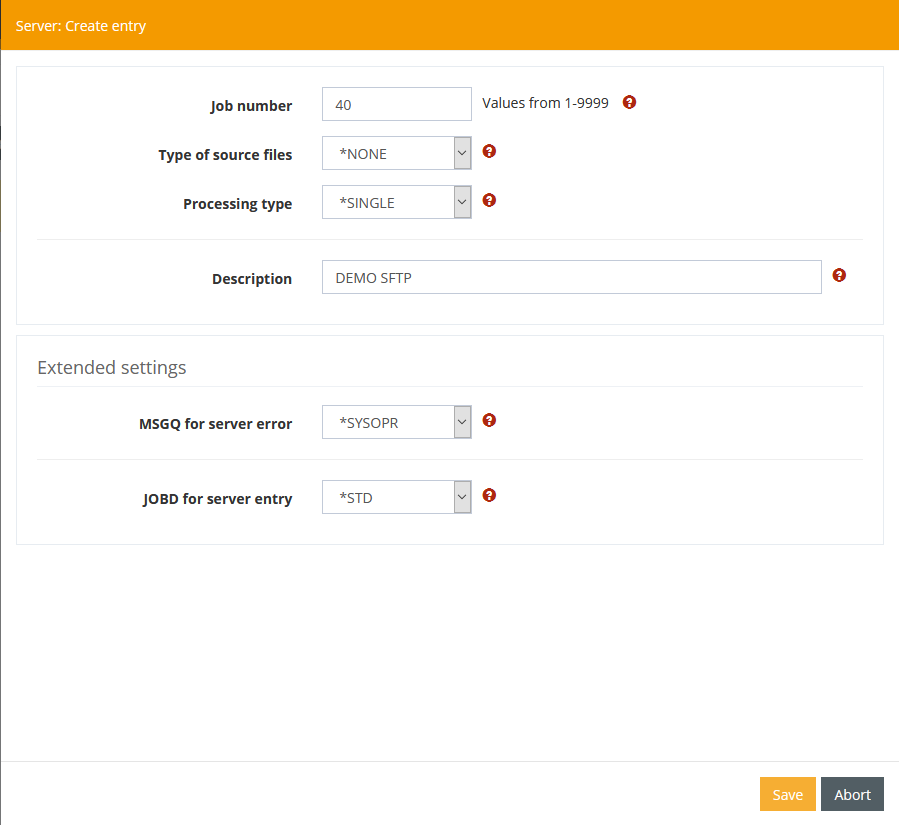
You make the following settings in the form.
-
Click on Save and a new browser window will open to configure the job. Create a new processing entry by clicking on the plus sign in the Processing steps section.
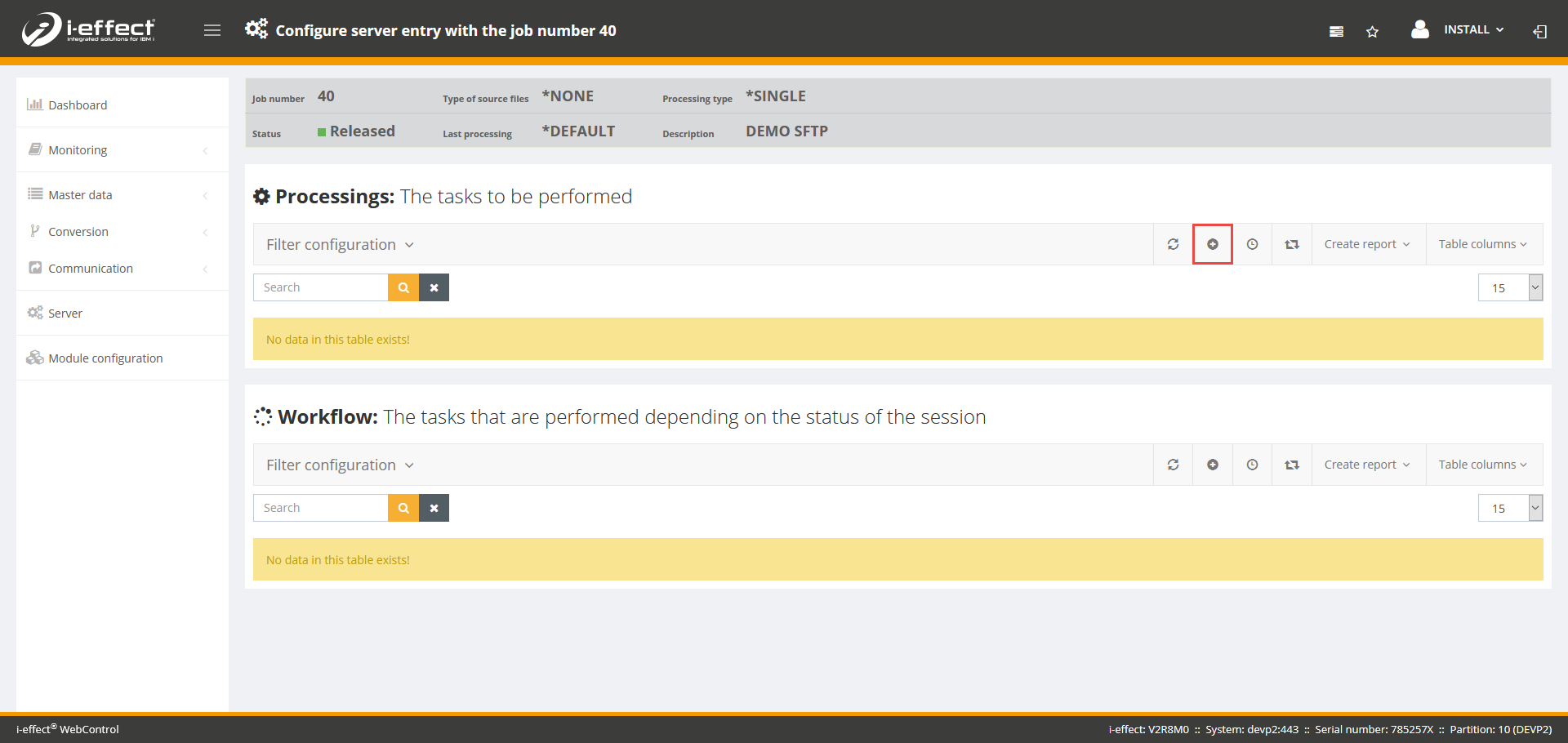
-
Select the following settings and enter SNDFTP in the command field. Now click on "Enter command". An input mask with the available parameters will now open.
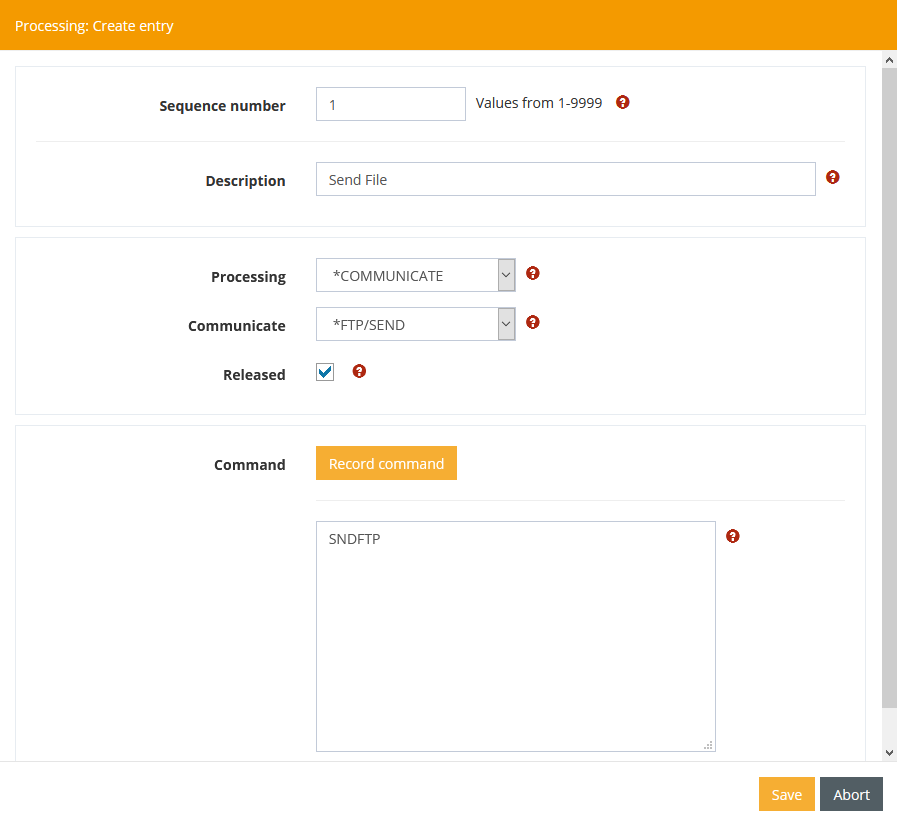
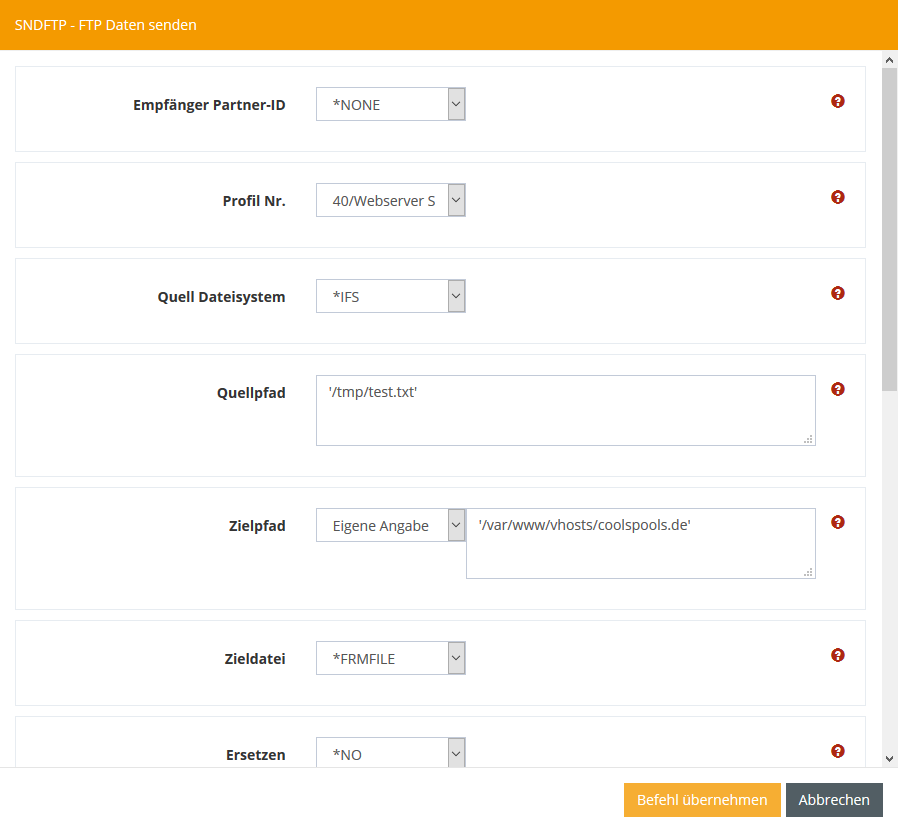
-
After you have made all settings, click on Apply Command and then on Save.
-
Start the Server Task by right-clicking on the previously created task and clicking "Start immediately".
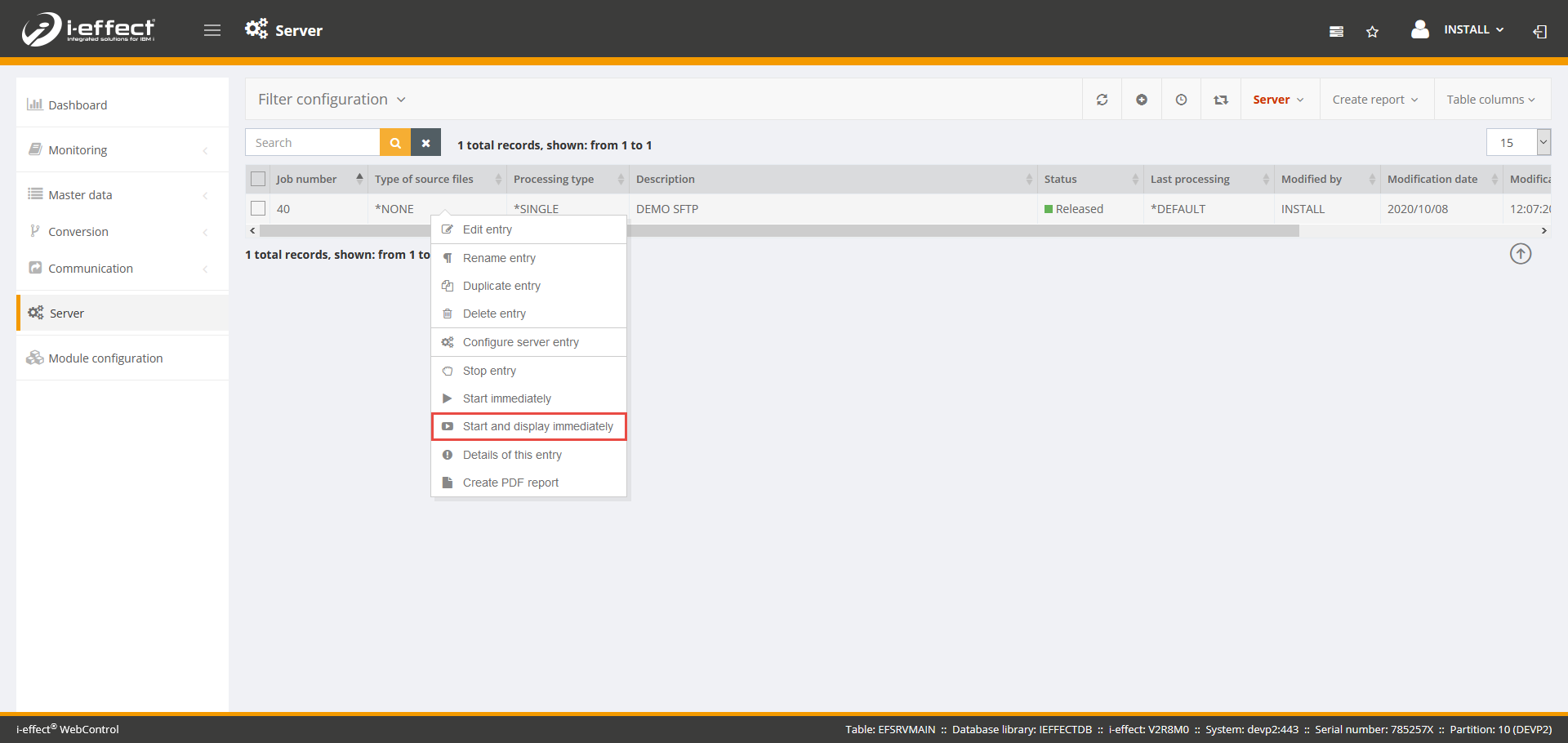
-
You can follow the status of the job in the log book. To do so, navigate to the menu item Monitoring → Session Logbook and right-click Session -> (X) Action(s) for this entry.
General information about the file known_hosts
Where is the known_hosts file located?
The known_hosts file is located under "/home/ieffect" and is only created when an SFTP connection has been established.
What is entered in a known_hosts file?
A known_hosts file stores the host keys (public key) of the previously connected servers.
Content of a known_hosts file:
IP of the server   Key Type    Public Key
55.168.78.192      ssh-rsa     AAAAB3NzaC1yc2EAAAADAQABAA...
Where do I get the host key/public keys of the server?
To get the host key or public key you have to send a test file to the server. If you know the public key of the server, you can enter it manually in the file.