
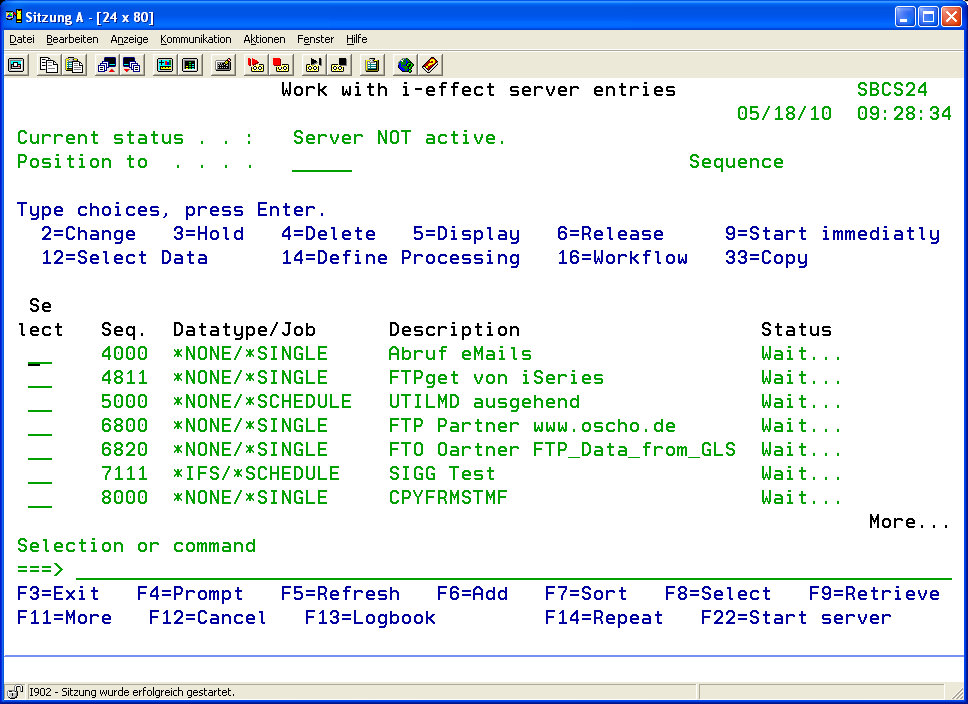
Choose menu item 40 of the main menu i-effect "Conversion, Compression, Communication" or enter the command WRKEFFSRV.
The following display will appear:
Sort entries
In order to quickly find entries, the entries can be sorted. Therefore, press function key F7.
The following display will appear:
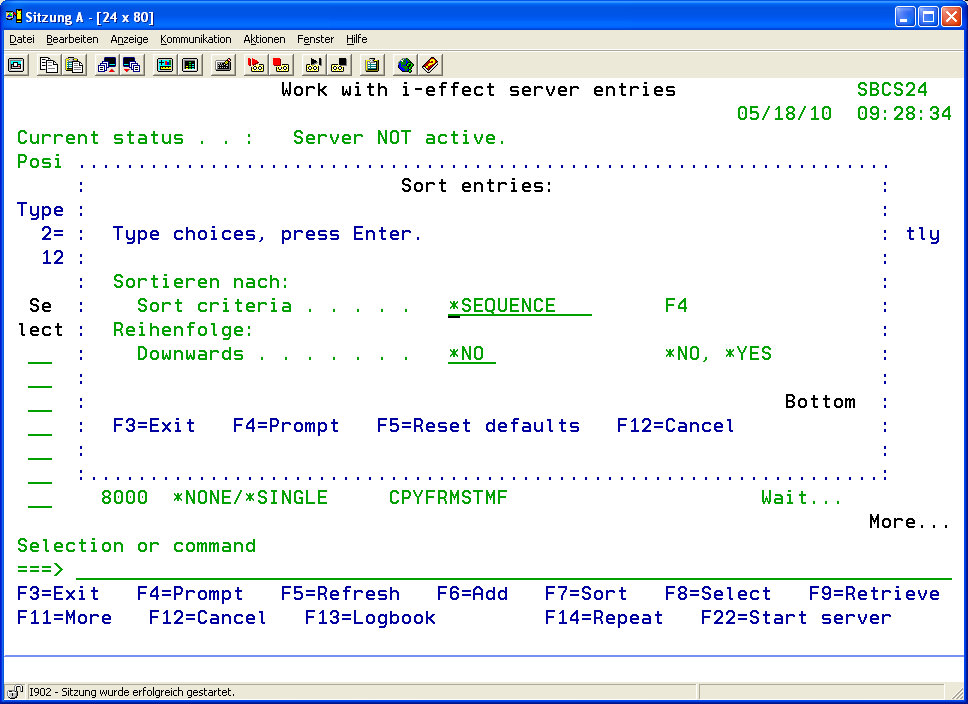
The following details can be chosen for sorting:
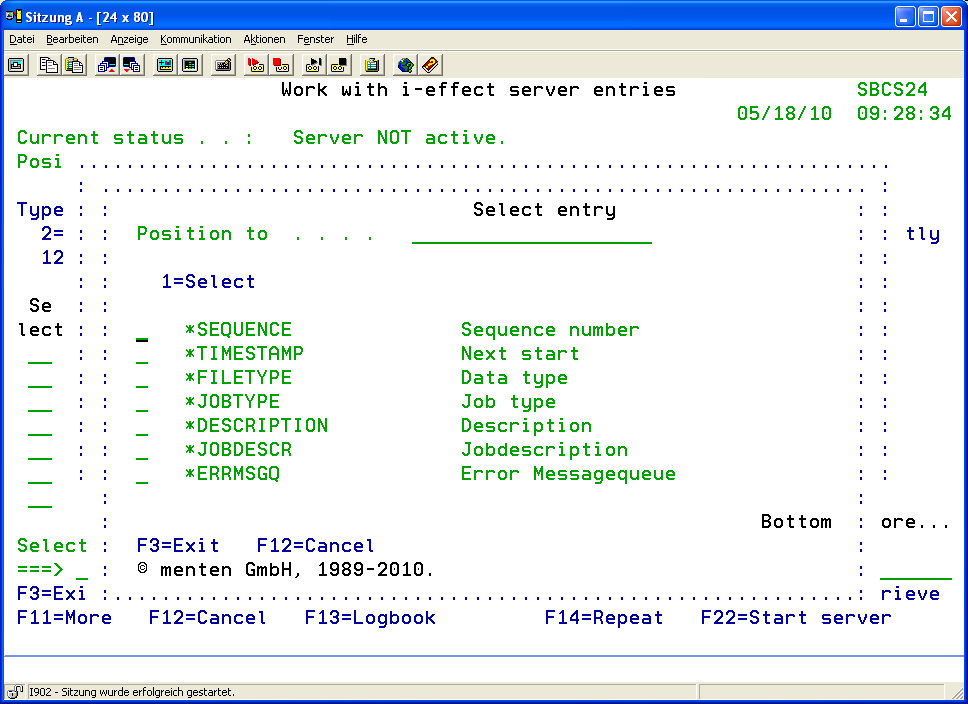
|
Details for sorting |
|
|
*SEQUENCE |
Sort by sequence number |
|
*TIMESTAMP |
Sort by next timestamp |
|
*FILETYPE |
Sort by file type |
|
*JOBTYPE |
Sort by job type |
|
*DESCRIPTION |
Sort by description |
|
*JOBDESCR |
Sort by job description |
|
*ERRMSGQ |
Sort by error message queue |
Furthermore, determine whether the entries are to be sorted in ascending or descending order:
|
Order |
|
|
*NO |
Sort entries in ascending order (A -> Z) |
|
*YES |
Sort entries in descending order (Z -> A) |
Filter list entries
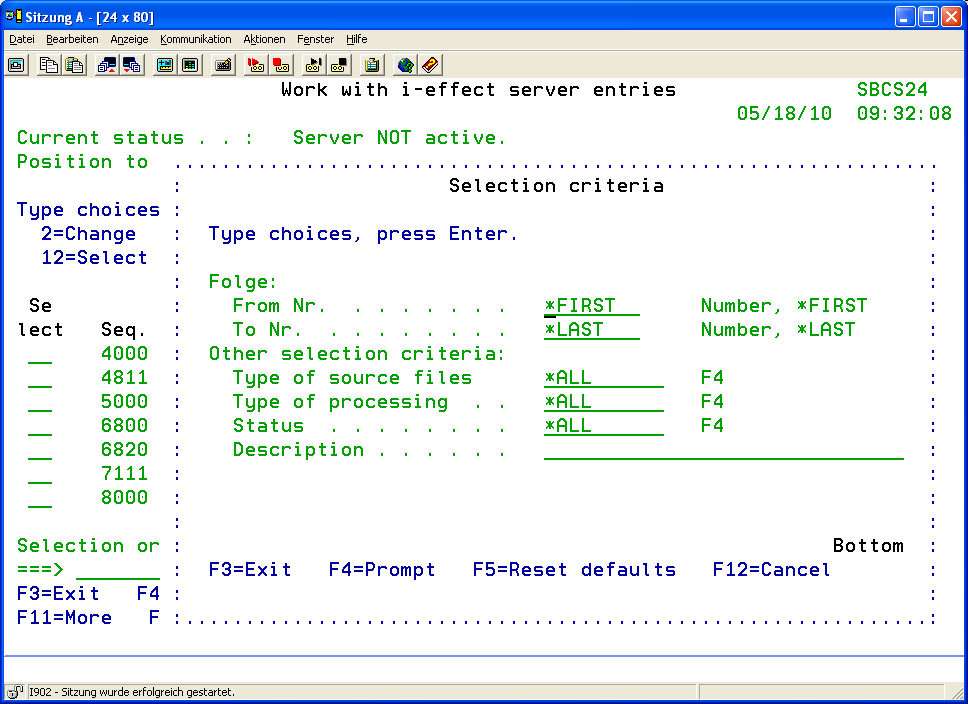
In order to quickly find entries, the entries can be filtered. Therefore, press function key F8. The following display will appear:
|
The following options are available for sequence numbers |
|
|
*FIRST |
First sequence number |
|
*LAST |
Last sequence number |
|
Zahl |
A number in the range of existing sequence numbers |
|
Type of source file |
|
|
*ALL |
All types of source files will be used. |
|
*SPOOL |
Only spooled source files will be used for processing. |
|
*DB2 |
Only data base files will be used for processing. |
|
*IFS |
Only IFS files will be used for processing. |
|
*NONE |
No files will be used for processing. |
|
Job type |
|
|
*ALL |
All job types |
|
*MONITOR |
Job type Monitor will be used (Spool/IFS/DB2) |
|
*SCHEDULE |
Job type Schedule will be used |
|
*SINGLE |
Job type Single will be used |
|
Status |
|
|
*ALL |
All types of status |
|
*PENDING |
Only status "Pending" will be used |
|
*HOLD |
Only status "Hold" will be used |
|
*STARTED |
Only status "Started" will be used |
|
Description |
A free text for searching can be entered here. |
Repeat option
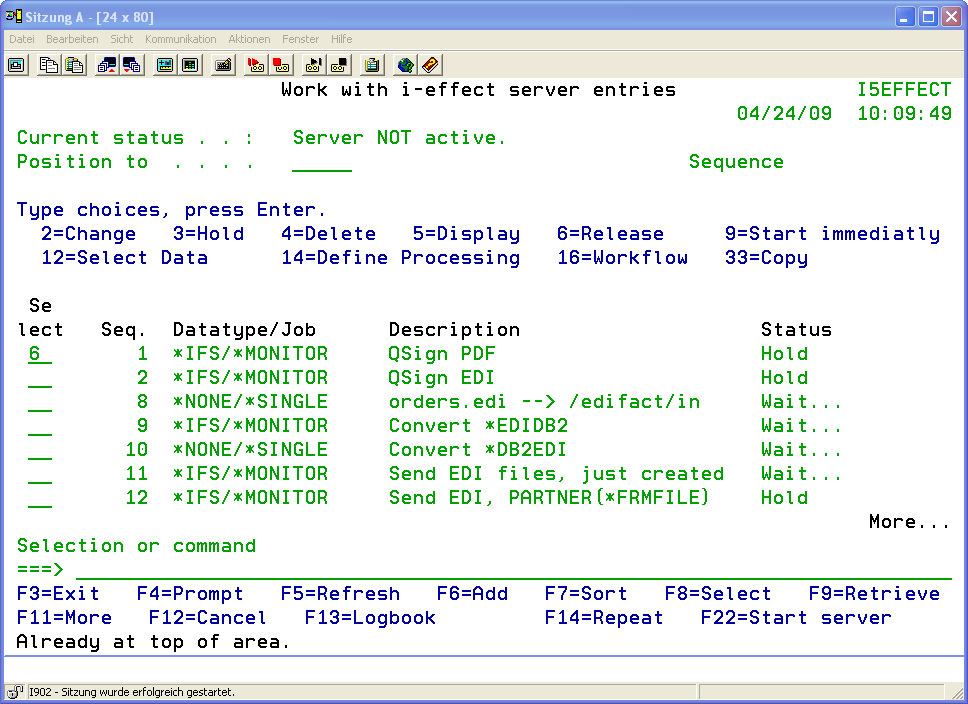
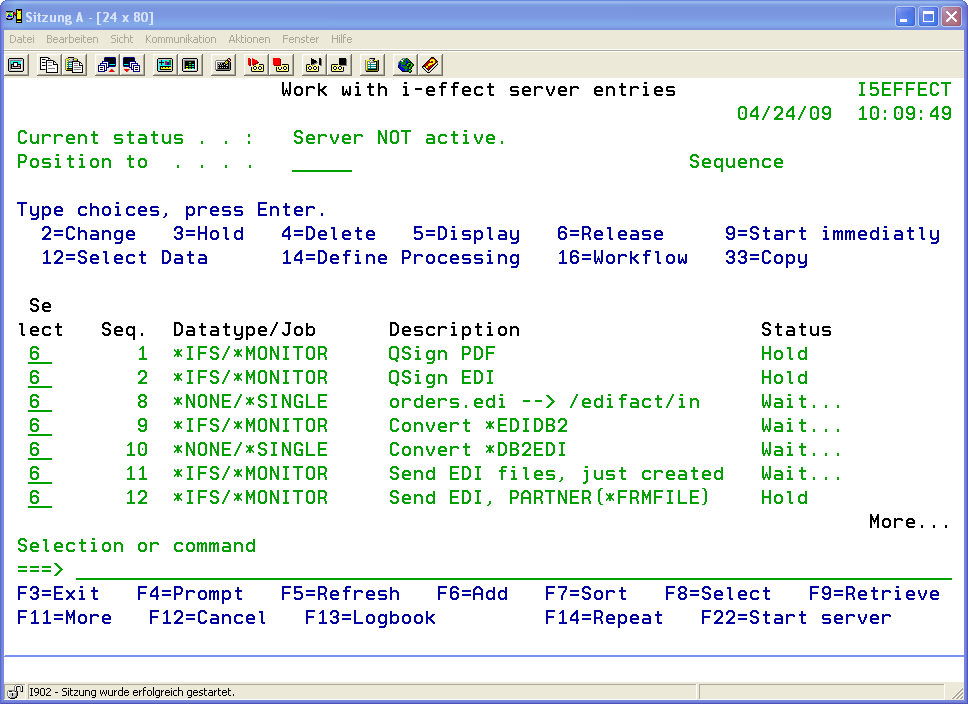
Function key F14 can be used to repeat an option that is entered into the Selection column. Enter the option number into the choice box of the first entry for which the option shall be repeated. This option will then be repeated for this entry and every following entry until the end of the list. The entries listed before the fist entry with the option will not be concerned.
Before pressing function key F14:
After pressing function key F14.
Edit entries
-
Enter the complete definition of all the i-effect *SERVER processes into the program interface "Work with i-effect Server Entries". The current server processes can be monitored by indication of the "Status" of the list entries. Entries can be added, processed or deleted.
-
Use function key F6 (add new server entry) or enter the command ADDERRSRV to add a new entry to the list.
-
Enter the unique sequence number.
-
Define the type of data source and select the processing type (*MONITOR, *SCHEDULE or *SINGLE).
After *MONITOR is specified this display will appear:
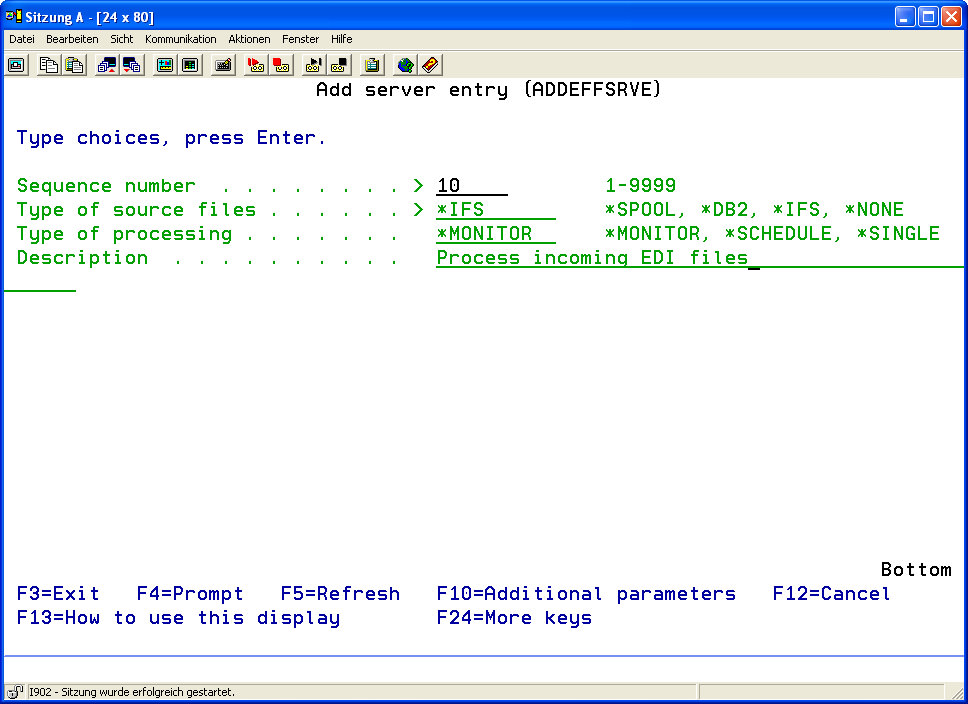
*MONITOR is an i-effect server job that triggers server processes through monitoring output queues, IFS directories, or DB2 libraries for incoming data.
The following display will appear if *SCHEDULE is specified:
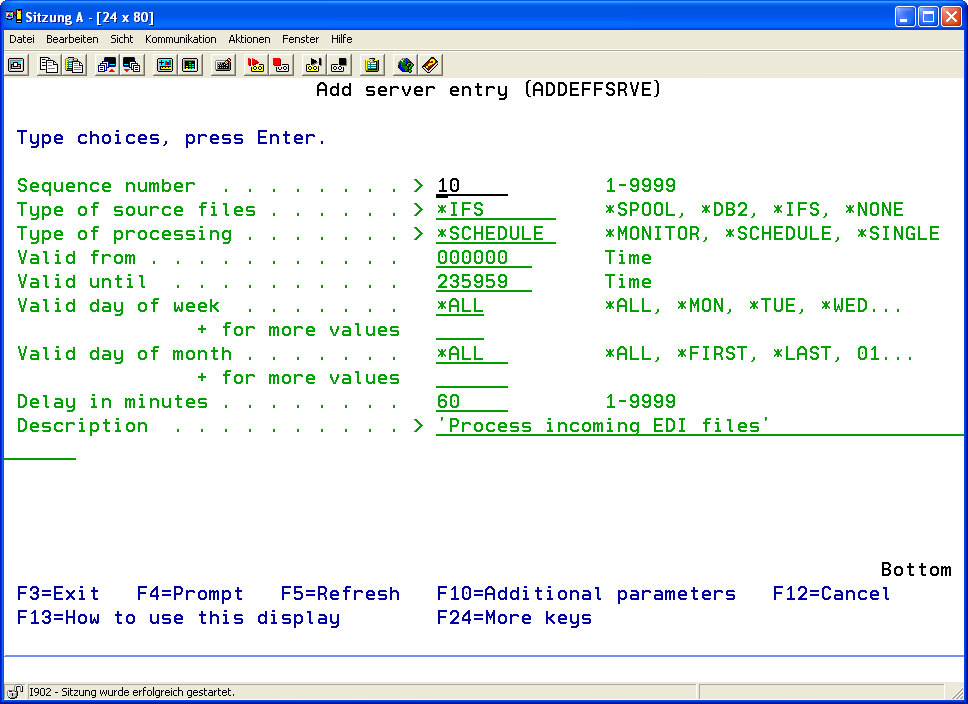
*SCHEDULE is an i-effect server job which schedules the desired tasks.
The following display will appear if *SINGLE is specified:
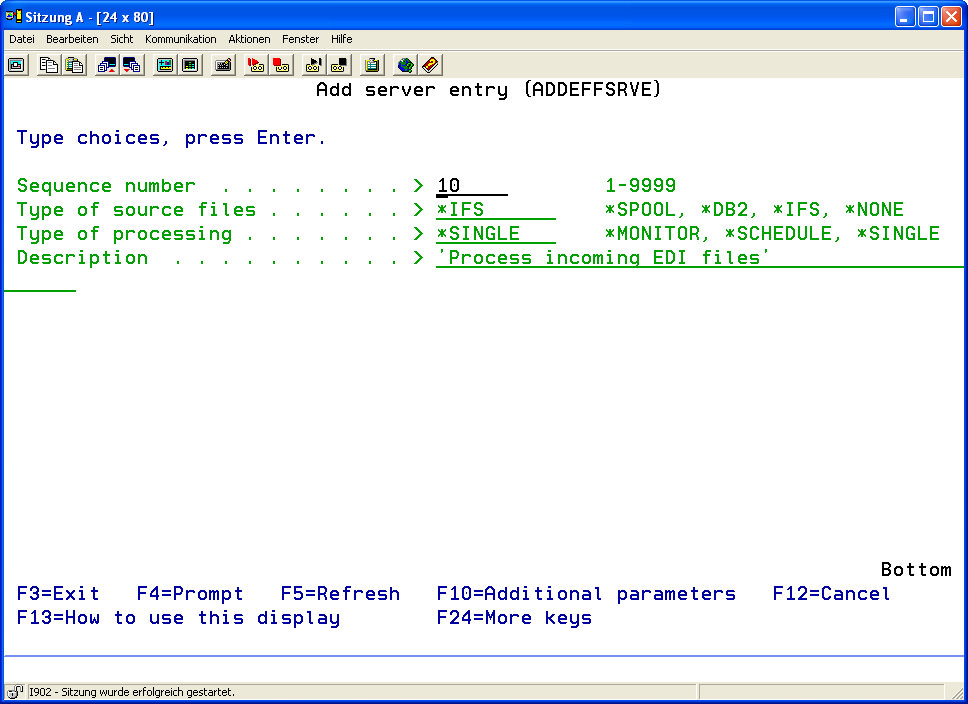
*SINGLE is a processing type that defines an i-effect server job that can be called up manually. With this type of processing, it is possible to define source data generically and predefine processes that occur irregularly. To call up a *SINGLE process, start the corresponding server process in the main table. *SINGLE processes can also be called up at the command interface. Predefined i-effect processes can be called up from the users own programs. Use the command STRSRVTSK POS (n), where "n" is the sequence number of the corresponding server entry in the main table. -
Confirm by pressing enter. Choose the new entry and call up the program interface (WRKSRVSLT) with option 12 in order to select the data sources.
How to edit existing entries is described in the following section.


Options
In the program interface „Work with i-effect Server Entries" (WRKEFFSRV) the following options are available. Choose the corresponding selection number in the display in order to edit existing entries as required:
|
Option 2 |
Change Server Entry (CHGEFFSRVE)
|
|
Option 3 |
Hold Server Entry
|
|
Option 4 |
Delete Server Entry
|
|
Option 5 |
Display Server Entry (DSPEFFSRVE)
|
|
Option 6 |
Release Held Server Entries
|
|
Option 9 |
Start Immediately
|
|
Option 12 |
Select Data
|
|
Option 14 |
Define Processing
|
|
Option 16 |
Workflow
*OK
|
|
Option 33 |
Copy Server Entry
|