|
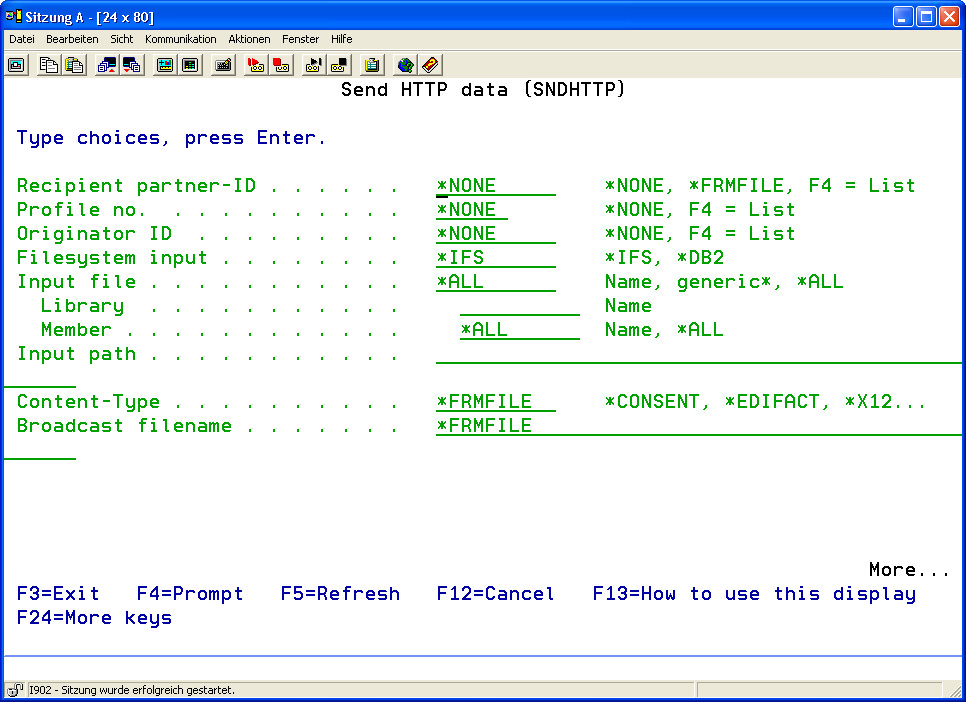
Recipient Partner-ID (PARTNER)
|
A partner profile entered in the master data under menu item 50 can be referred to here.
The following special values are possible:
|
*NONE
|
No receiver partner ID will be assigned. The required specifications for the recipient must be entered manually in the parameters of this command.
|
|
*FRMFILE
|
The partner alias will be taken from the EDIFACT file (recipient in the UNB segment).
|
|
Text
|
Enter the recipient partner ID.
|
|
|
Communications Profile No. (PROFILE)
|
A communications profile from menu item 52 of the master data can be referred to here.
The following special values are possible:
|
*NONE
|
No communications profile will be assigned. The specifications required be the remote system must be entered manually in the parameters of this command.
|
|
Text
|
Enter a communications profile ID.
|
|
|
Originator ID (ORIGINATOR)
|
An originator profile from the master data in menu item 51 can be referred to here.
The following special values are possible:
|
*NONE
|
No sender will be assigned. All pertinent information for the sender must be entered in the parameters of this command.
|
|
Text
|
Enter a communications profile number.
|
|
|
File System Input (FS)
|
Enter the file system of the input file.
The following options are available:
|
*NONE
|
No file system will be assigned.
|
|
*IFS
|
The input file is stored in the IFS (Integrated File System)
|
|
DB2
|
The input file is stored in the DB2 file system.
|
|
|
From File (FRMFILE)
|
The input file to be transmitted is entered here.
The following options are available:
|
*ALL
|
All files in the source directory or library will be transmitted.
|
|
Name
|
Enter the name of the input file.
|
|
generic*
|
Use "*" as a wild card for generic input file selection.
|
|
|
The parameter consists of 2 elements:
|
|
Library
|
The library of the source file in the DB2 file system.
|
|
Member File
|
The source member file in the DB-2 file system.
Possible Special Value:
|
*ALL
|
All source member files in the DB2 input file will be transmitted.
|
|
|
|
Input Path (FRMPATH)
|
Enter the path to the IFS input file. "*" can be used as a wild card for generic input.
|
|
Content Type (CONTENTT)
|
Determines the content type used for transmission.
|
*CONSENT
|
Data is marked as content type "application/EDI-Consent" and transmitted. This marking applies as long as EDIFACT, X.12, or XML data is not being used. This content type is used generally after bilateral agreement.
|
|
*EDIFACT
|
The data is marked as content type"application/EDIFACT" and transmitted. This marks EDIFACT messages, which can be sent to EDIFACT converter systems for automatic processing by the receiving system.
|
|
*X12
|
Data is marked as content type "application/EDI-X12" and
transmitted. This marks ANSI X.12 messages, which can be sent to ANSI X.12 converter systems for automatic processing by the receiving system.
|
|
*XML
|
Data is marked as content type "application/XML" and transmitted. This marks data in the XML format.
|
|
*BINARY
|
Data is marked as content type "application/BINARY" and transmitted. This marks data in the binary format.
|
|
*FRMFILE
|
Data is marked with the content type specified by the file extension of the data that will be transmitted. A file with the extension ".txt" contains the content type "application/rtf". A file with the extension ".pdf" has the content type "application/pdf", and a file with the extension ".gif" has the content type "image/gif".
|
|
*DEFAULT
|
The defaults will be taken from the partner master data.
|
|
|
Virtual File Name (BROADCAST)
|
The virtual name of the transmitted file. This name will be sent to the recipient instead of the physical name, unless *FRMFILE is selected here.
Possible Special Value:
|
*CONSENT
|
Data is marked as content type "application/EDI-Consent" and transmitted. This marking applies as long as EDIFACT, X.12, or XML data is not being used. This content type is used generally after bilateral agreement.
|
|
*EDIFACT
|
The data is marked as content type"application/EDIFACT" and transmitted. This marks EDIFACT messages, which can be sent to EDIFACT converter systems for automatic processing by the receiving system.
|
|
*X12
|
Data is marked as content type "application/EDI-X12" and
transmitted. This marks ANSI X.12 messages, which can be sent to ANSI X.12 converter systems for automatic processing by the receiving system.
|
|
*XML
|
Data is marked as content type "application/XML" and transmitted. This marks data in the XML format.
|
|
*BINARY
|
Data is marked as content type "application/BINARY" and transmitted. This marks data in the binary format.
|
|
*FRMFILE
|
Data is marked with the content type specified by the file extension of the data that will be transmitted. A file with the extension ".txt" contains the content type "application/rtf". A file with the extension ".pdf" has the content type "application/pdf", and a file with the extension ".gif" has the content type "image/gif".
|
|
*DEFAULT
|
The defaults will be taken from the partner master data.
|
|
|
Proxy Settings (PROXY)
|
If a proxy is used for Internet access, the parameters for proxy access can be specified here.
This parameter consists of 4 elements:
The DNS name and the proxy port as well as user name and password (if required).
|
DNS Name or IP
|
Enter either the TCP/IP or DNS name of the proxy server.
|
|
TCP/IP Port:
|
Enter the TCP/IP port to which the proxy server will answer.
|
|
User Name/Password
|
Enter the user name and password for authentication on the proxy server.
|
|
|
HTTP Server (SERVER)
|
If no communications profile was specified in the parameter PROFILE (), the parameters for communication with the remote server must be entered in this parameter group.
This parameter consists of 10 elements:
The DNS name and port of the remote system, user name, password, SSL, certificate, keystore, as well as the timers to be used.
|
DNS Name or IP
|
TCP/IP address or the DNS host name of the remote HTTP server.
|
|
TCP/IP Port
|
TCP/IP port that the remote HTTP server answers. The default is 80.
|
|
User Name/Password
|
User name and password (if required) for authentication on the sever.
|
|
SSL
|
The parameter determines the protocol. HTTP communication can either be SSL/HTTPS (Secure Socket Layer) or normal HTTP.
|
*YES
|
Yes, HTTPS will be used.
|
|
*NO
|
No, HTTPS will be used.
|
|
|
Import Certificates?
|
Specify here if certificates of the HTTP server should be automatically imported. The HTTP sever identifies to a client with a certificate by sending it to the client when the connection is established. If this certificate is not in the i-effect keystore, it will automatically be imported.
If *NO is selected, an error will occur if the server's certificate is not present in the i-effect keystore.
|
*YES
|
Server certificates will automatically be imported into the keystore.
|
|
*NO
|
Server certificates will not be imported into the keystore.
|
|
|
Connection Certificate
|
If the remote station asks for SSL client authentication, this parameter determines the alias of the key pair in the keystore that is used for authentication on the remote station. With the public key (certificate) of the key pair authentication is effected on the server as soon as an SSL connection is established. The certificate must exist in the keystore of the remote station's server before a connection establishment.
|
|
Connection Timeout
|
Timeout in seconds for establishing a connection.
|
|
Read Timeout
|
Timeout in seconds for reading of data on an open data connection.
|
|
Maximum Send Retries
|
Number of retries for the transmission of a file. If a connection could not be established, or if the connection is aborted, the system will try to reach the system until the maximum number of tries has been reached.
|
|
Send Retry Pause
|
Pause in seconds between reties.
|
|
|
Sender (MISC)
|
The sender in the HTTP header.
This parameter consists of one element:
|
Originator Email
|
This email address will be entered in the header of an HTTP request as the sender's email address.
|
|
|
Delete after Transmission (DELETE)
|
Determine here if the transmitted file should be deleted after it is transmitted.
The following options are available:
|
*NO
|
The source file will not be deleted after transmission
|
|
*YES
|
The source file will be deleted after transmission.
|
|
|
i-effect Server (EFFSERVER)
|
It is possible, with i-effect, to remotely call up certain tasks from other IBM System i in the network. It is also possible to call up this command remotely. The sever on which i-effect is installed and licensed must be specified in this case.
This parameter consists of 3 elements.
|
DNS Name or IP
|
Enter the DNS name or the IP address of the i-effect-Servers.
|
*LOCALHOST
|
This default value specifies that the command is called up on the same system where i-effect is installed. It is required that a port be assigned in the next parameter.
|
|
*TCP/IP-Port
|
Enter the port from which the i-effect command will be called. This port is dependent on the area for TCP/IP ports, which are specified in the default settings of the *BASE module. (Menu item 80).
|
|
|
The following settings are possible:
|
|
Command SNDAS2
|
Base port + 0
|
|
Command SNDEMAIL
|
Base port + 1
|
|
Command SNDFAX
|
Base port + 1
|
|
Command SNDSMS
|
Base port + 1
|
|
Command RCVEMAIL
|
Base port + 1
|
|
Command RUNREPORT
|
Base port + 3
|
|
Command SNDBACK
|
Base port + 4
|
|
Command SNDHTTP
|
Base port + 6
|
Select the base i-effect TCP/IP port area and add a number that corresponds to the desired command.
|
|
Type of Call
|
This parameter defines whether the calling server first waits for feedback or is immediately available for further actions.
|
*SYNCH
|
Synchronous means that the system will wait for an answer from the remote side, with for example SNDOFTP, all files will be sent, before further actions can be taken.
|
|
*ASYNCH
|
The Power Systems server is immediately available for further actions, as processing of the remote-controlled call runs in the background.
|
|
|