
Sometimes you need detailed information about an AS2 session. To find the associated files, first go to the document inbox or outbox.
From here you can access the various detailed information.
Complete technical session logbook
You can obtain the complete session log by opening the context menu on the respective entry and selecting the menu item Show protocols under Session.
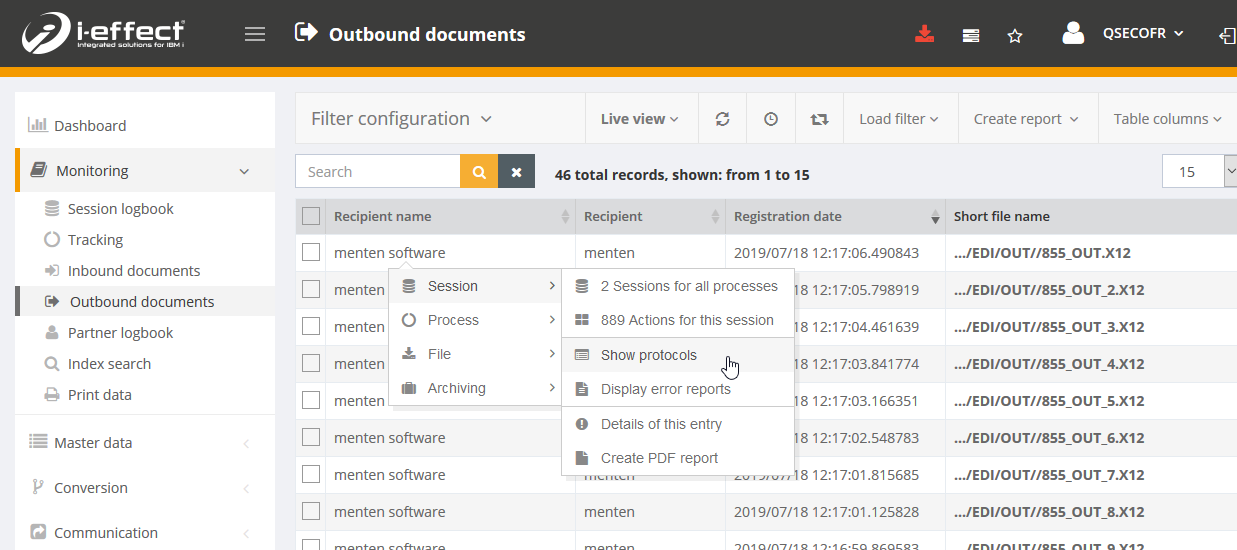
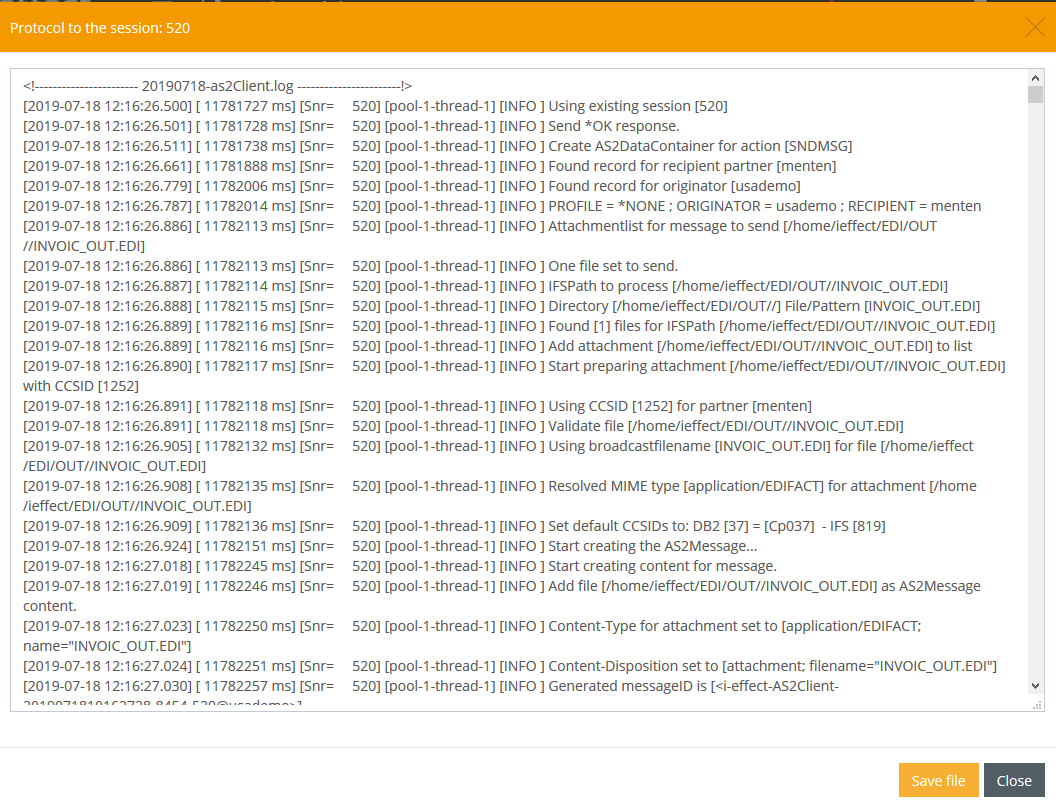
This opens a detailed application log in which you can follow every single step of the modules involved in the session.
Determine sent or received file
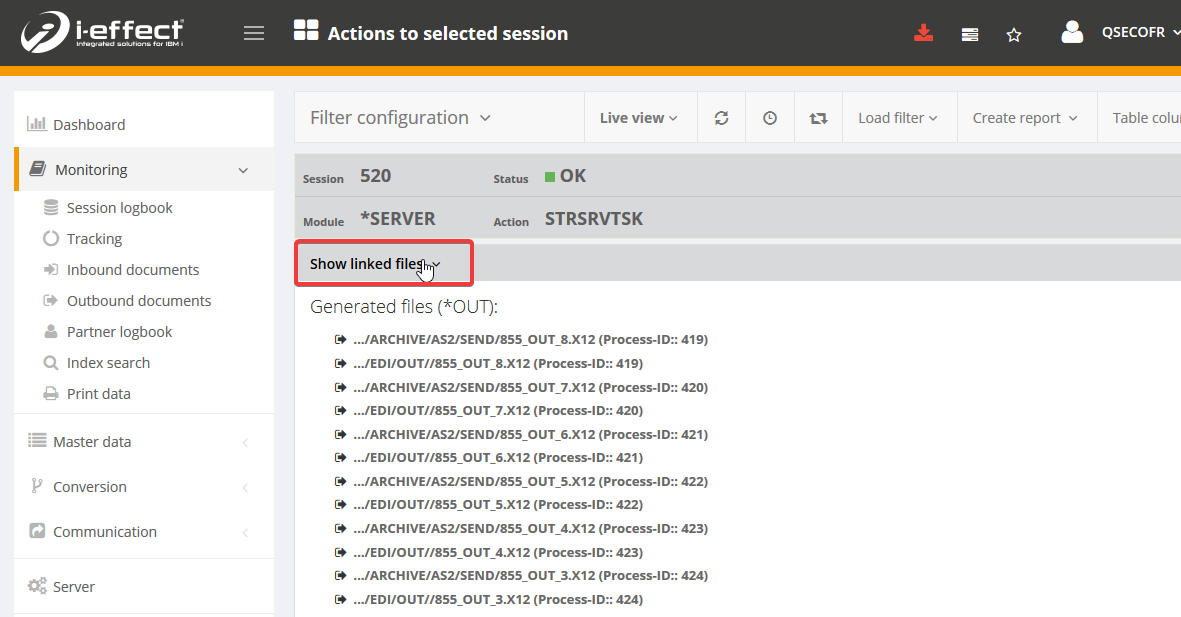
If you want to determine the file that has been sent or received, you can view this in the session log.
To do this, unfold the tab Linked files. Here you get an overview of the files processed with this session.
Determine MDN
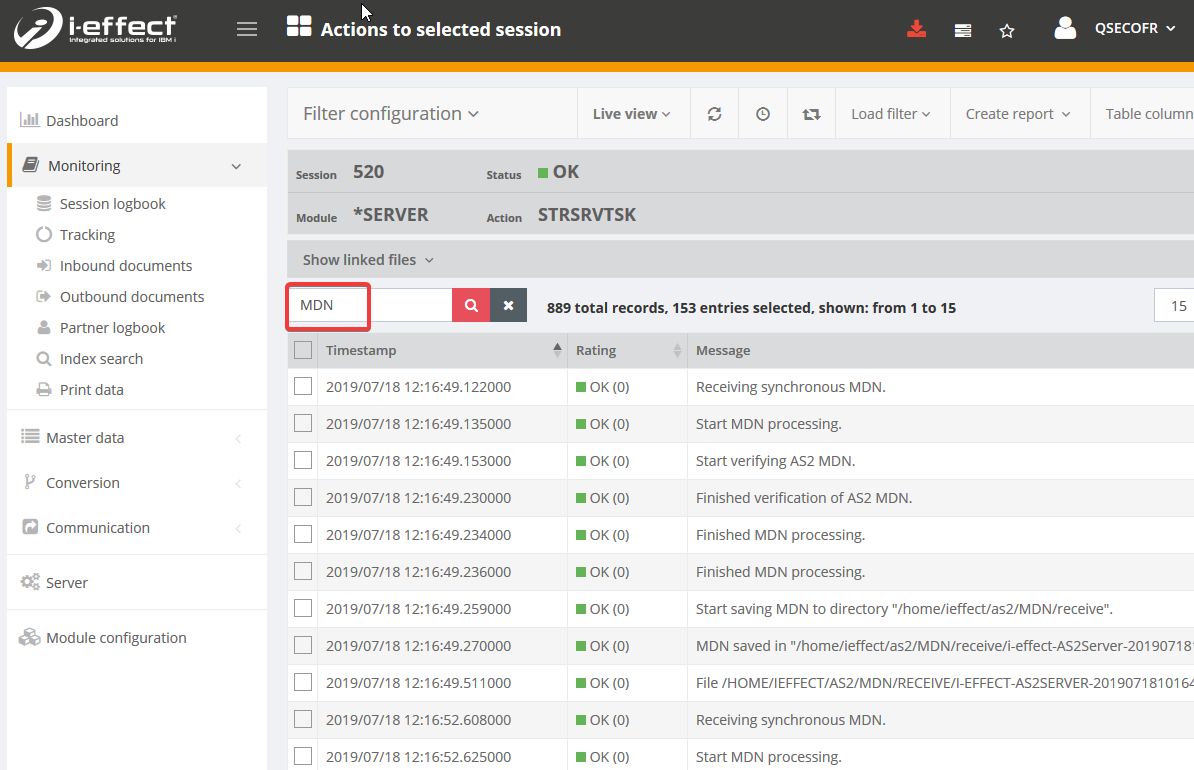
The easiest way to determine the location of an MDN for a particular session is to use the session log.
There you simply filter the log by the search term "MDN".
Complete technical error log
So that you do not have to view the entire application log, i-effect also provides the so-called error log. The error log only contains diagnostic or error messages.
To get to the error log, open the context menu on any faulty entry and choose Session → Display error reports.
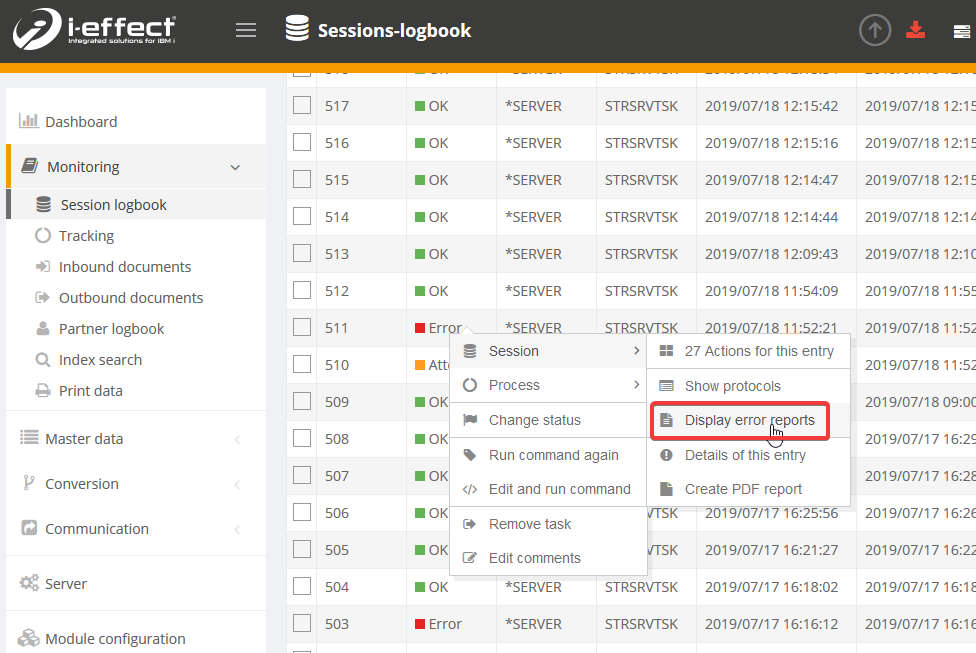
In detail, you can see all error messages that occurred in the session.
